
Welcome
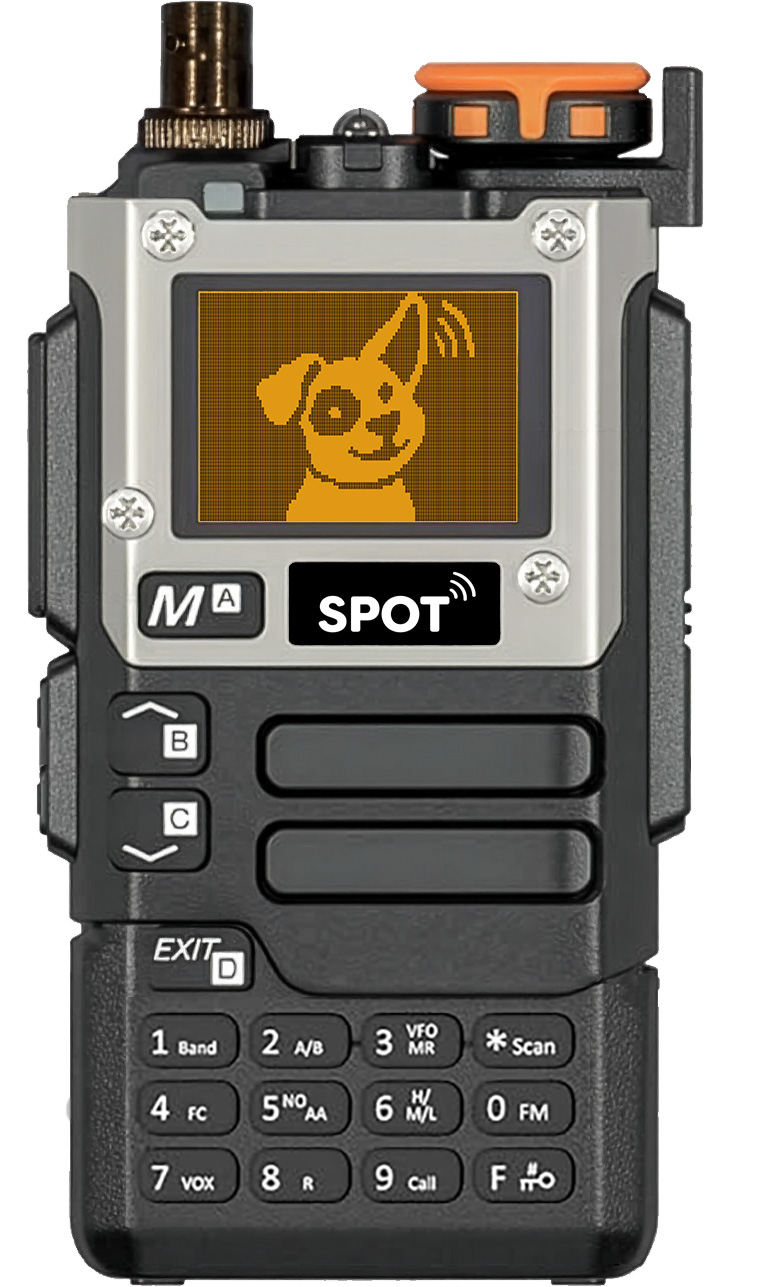
Welcome to SPOT - a wildlife telemetry receiver designed around the way trackers actually work in the field. It provides features focused on efficiency, convenience, and ease of use, all based on low-cost, commodity hardware.
Throughout the manual we refer to the physical unit as a receiver, and the person operating it as an operator. The person who programs the receiver may be the operator or an administrator / support person.
Hardware Requirements
SPOT runs on consumer amateur radio hardware which can be be purchased for about $30. For more details, check the appendix.
Legend
Throughout this manual we use the following formatting to help distinguish various types of items:
- Key: Refers to a physical key on the keypad
- : Refers to one of the items in the menu system
- : Refers to one of the choices in a menu
- Term: A term we are introducing, or a value, like a name, that you might enter
- 🔍: If you see a magnifying glass in the lower right corner of an image, it signifies that you can click the image to get a larger view.
This manual, like SPOT itself, is evolving and feedback is welcomed and appreciated.
Physical Layout and Controls
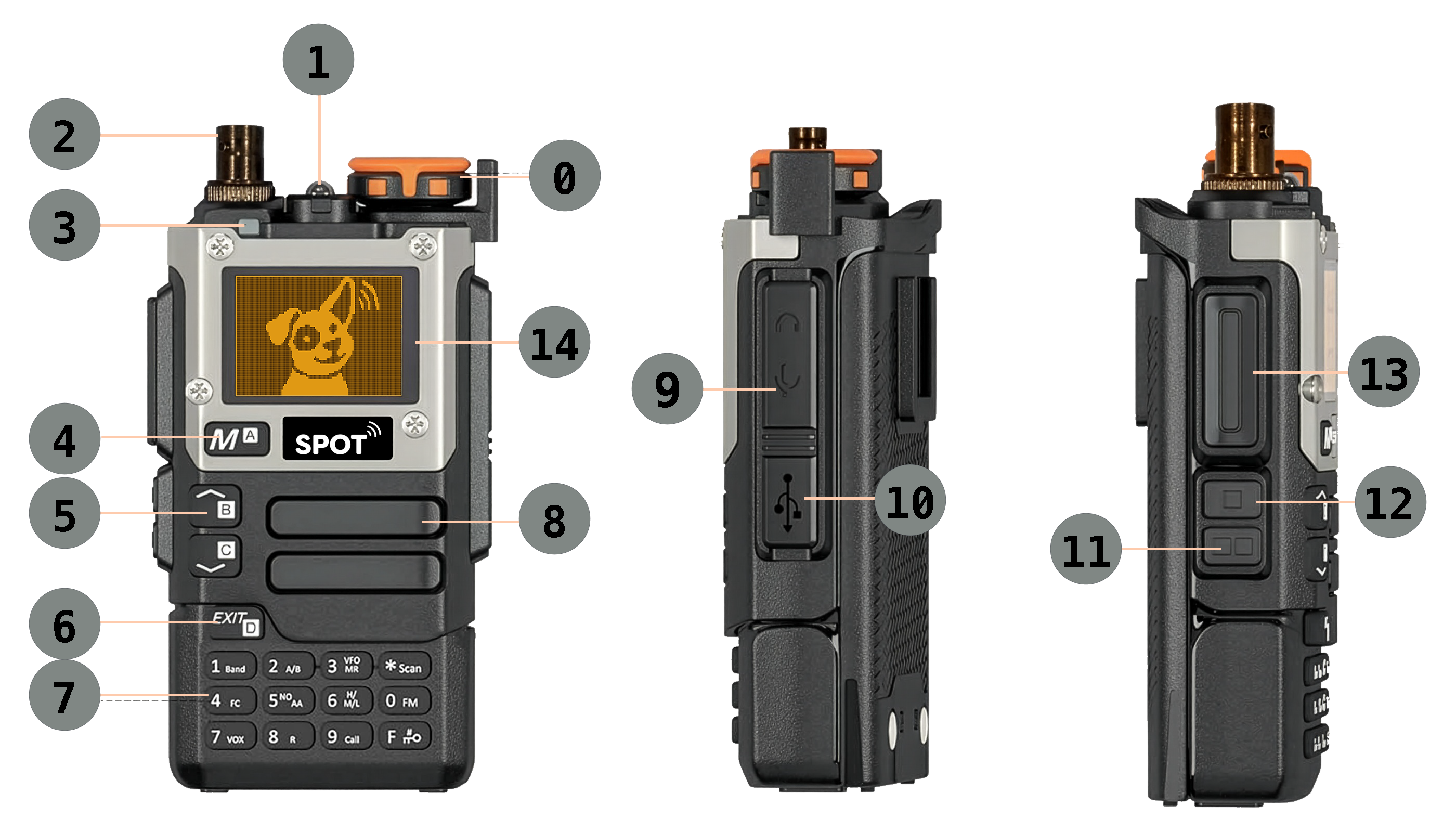
| Controls / Connectors / Indicators | ||
|---|---|---|
| ⓪ Power/Volume | ① Flashlight | ② Antenna Adapter |
| ③ Power Indicator | ④ Menu Button | ⑤ Up/Down Keys |
| ⑥ Exit | ⑦ Keypad | ⑧ Speaker |
| ⑨ Display | ⑩ Headphone Port | ⑪ USB Port |
| ⑫ RF Gain Down | ⑬ RF Gain Up | ⑭ PTT Button |
An overview of each item is given below, and more detail can be found throughout the manual.
⓪ Power/Volume: Turn the knob to turn the power on/off and adjust the volume
① Flashlight: There is a small LED at the top of the unit that can be used as a flashlight. Enable the flashlight using the menu system, and toggle it on/off using F - 4.
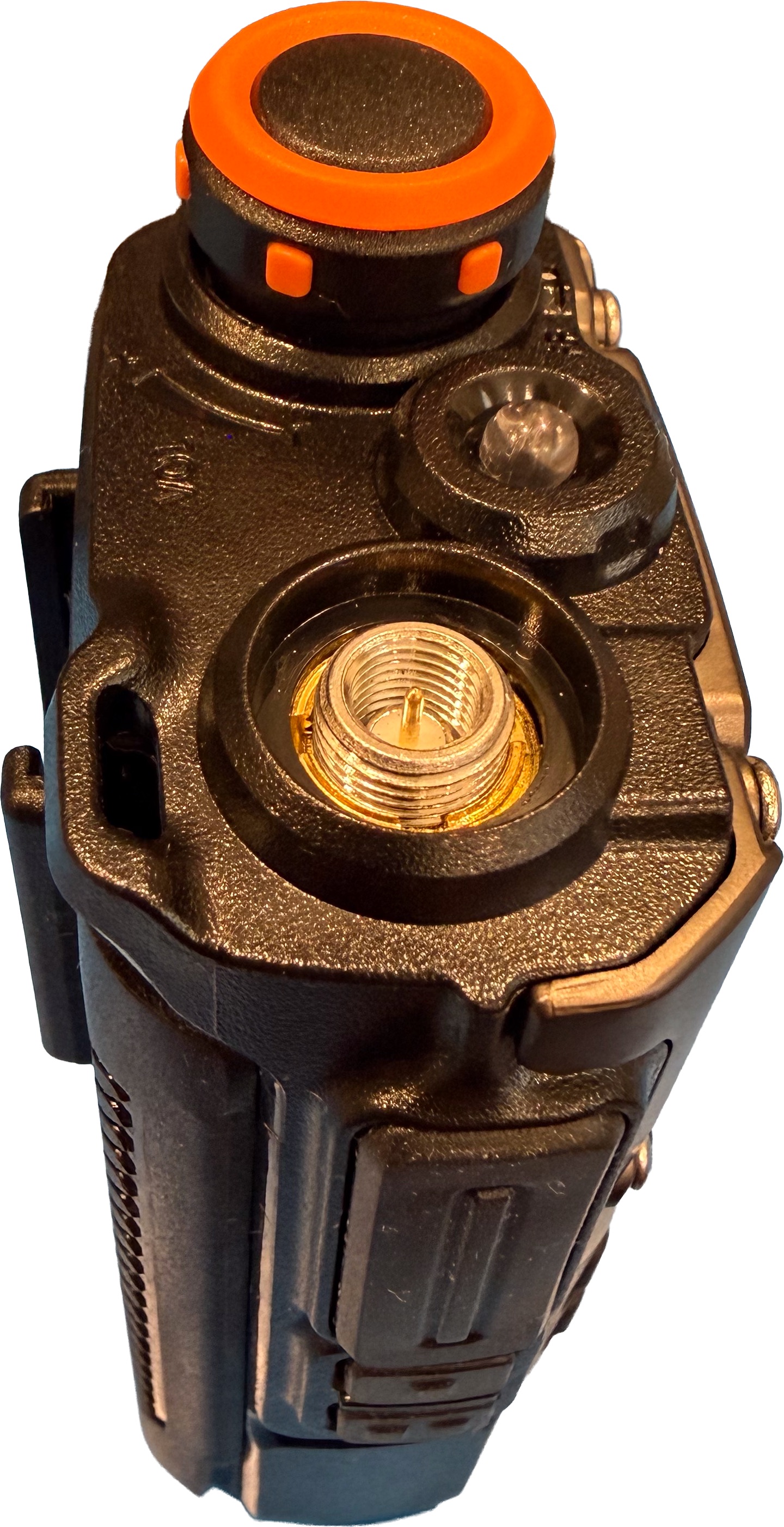
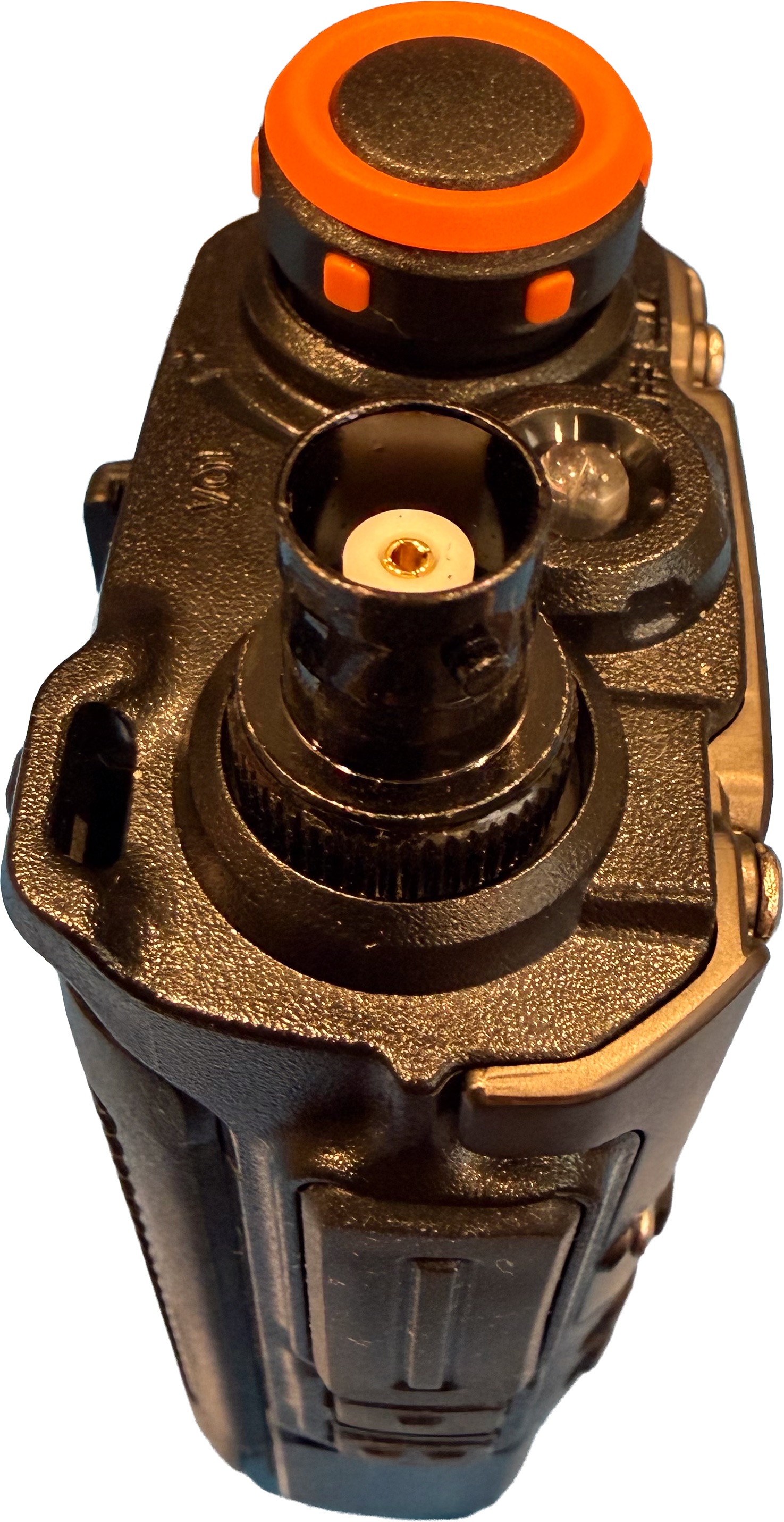
② Antenna Adapter: Attachment point for BNC antenna cables (the cable coming from a Yagi antenna).
③ Power/Charging Indicator: Displays green when power is on. Turns blue when charging via the USB port.
④ M (Menu): Pressing this button opens the menu system. While in the menu, it is used to select an item, enter edit mode, and confirm a new value. In other contexts it is used an "accept" key.
⑤ ▲ / ▼: In memory mode these keys move through stored channels. In frequency or adjust mode they tune the displayed frequency by the current step size. In menus they move through menu items and menu values
⑥ EXIT: Used to stop or exit an operation such as a menu or a scan. It is also used to remove the most recently entered digit when entering a value. A long press clears the value being entered.
⑦ Keypad:
- 0 - 9:
In memory mode, use the numeric keys to enter a channel or ID, followed by M to confirm it. For example, press 4 6 M for channel 46.
In frequency mode, use the numeric keys to enter a frequency. There is no need to enter a decimal point. In fact, there is no decimal point on the keyboard. For example, to enter the frequency 144.569 MHz, press 1 4 4 5 6 9.
-
F (function) key:
Certain actions can be invoked by first pressing the F key followed by another key. The manual will show this as a combination, such as F - 3. These functions can also be invoked by pressing and holding just the second. For example, F - 3 is equivalent to pressing and holding 3.
Locking: To avoid accidentally pressing keys, the receiver has a keyboard lock function which can be activated a long press of the F key. A padlock icon
 will be displayed in the status bar. All key presses will be ignored until you long press F again to deactivate the lock. NOTE that this locking remains active across reboots.
-
* Scan (function) key:
Used to enter Scan mode and perform related operations.
⑧ Speaker: Used for audio output unless a headphone is plugged in.
⑨ Display: Details on the types and format of information shown on the display are given below.
⑩ Headphone Port: Use this port to attach the provided programming cable when programming the receiver from your computer. Use this port to attach a headphone, if desired, for field operation.
⑪ USB Port: This USB-C port is used for charging and for programming the radio.
⑫ RF Gain Down (▢ ▢): Decreases the RF Gain. Press and hold to move down continuously
⑬ RF Gain Up (▢): Increases the RF Gain. Press and hold to move up continuously.
⑭ PTT (▯): On a "walkie talkie" this is the button you press when you want to talk, so it is called the Push To Talk (PTT) button. It's an easy button to press accidentally because of its size and placement. Since we're just listening, not talking, this button has no function in normal operation.
Getting Started
Before first use:
- Install the battery securely and charge it fully.
- Install the antenna adapter if it is not already in place.
- Attach an appropriate antenna for the frequencies you plan to monitor.
- Power the receiver on using the volume/power knob.
- Confirm that the display starts normally and the battery state looks adequate. Batteries are detachable and a spare battery can be swapped in while in the field.
- Verify that the stored channels and lists match your field plan.
Attaching an antenna
The receiver has a male SMA antenna connector built into the top of the body (see the left image below). Most telemetry antennas use a BNC connector, so an adapter is required. If your organization provided the receiver and antenna, in all likelihood the adapter is already installed. Connect / disconnect the antenna from the adapter. Leave the adapter permanently attached to the receiver to reduce wear and tear on the SMA connector.
Principles of Operation
Basic Concepts
- Animal ID: A number that uniquely identifies an animal. IDs are typically short numbers like 209. SPOT allows you to quickly jump to a particular animal by entering its ID. That process will be described later.
- Tag: A transmitter on an animal that sends pulses on a known frequency (e.g. 150.123 MHz). A single animal may have more than one tag. For example, a large bird may have a tag on it's left wing and on it's tail. When your receiver is tuned to the frequency of a nearby tag, you'll hear "pings" that are about 700Hz (listen). If you tune the receiver above or below the tag's actual frequency, the tone will change and ultimately become inaudible.
- Memory: Since you may be working with hundreds of animals, the receiver has persistent memory to store information about their tags. You'll almost always be using information from memory, but you can enter frequencies directly on the keypad. You do that in Frequency Mode. This mode is typically only used when programming the receiver manually (rare) or making on-the-fly observations.
- Channel: A slot in the the receiver's memory that stores information about one tag on one animal. The channel stores the frequency and the channel name. The latter typically begins with the animal ID. For example, 209 Rascal.
- Lists: Because you may want to focus on subsets of your tags, SPOT allows you to organize your memory channels into Lists. For example, you might have lists corresponding to geographic areas, specific animals of interest, or other criteria. Lists let you focus your attention on different sets of tags at different times. We'll discuss Lists in more detail below.
Understanding RF Gain
Imagine trying to find the direction of a sound using a microphone and a speaker.
The microphone determines what gets picked up. The speaker only determines how loudly you hear it. Turning up the volume does not help the microphone pick up a weak sound - it only makes everything the microphone already hears louder.
The microphone’s Gain controls how much it picks up. With the gain turned up, it may hear faint sounds, but it may also hear strong sounds coming from the sides or behind you. If the gain is too high, a strong sound may seem loud no matter which way you point the microphone, making it hard to tell where it is coming from.
Turning down the volume does not solve that problem. It makes everything quieter, but the sound may still seem equally strong in every direction. Turning down the microphone gain is what helps. Sounds from the sides or behind may become harder to hear, while the sound you are pointing toward remains clear. As you turn the microphone, the sound gets louder or quieter, helping you find its direction.
Check out these diagrams for a quick reminder about Gain and Volume.
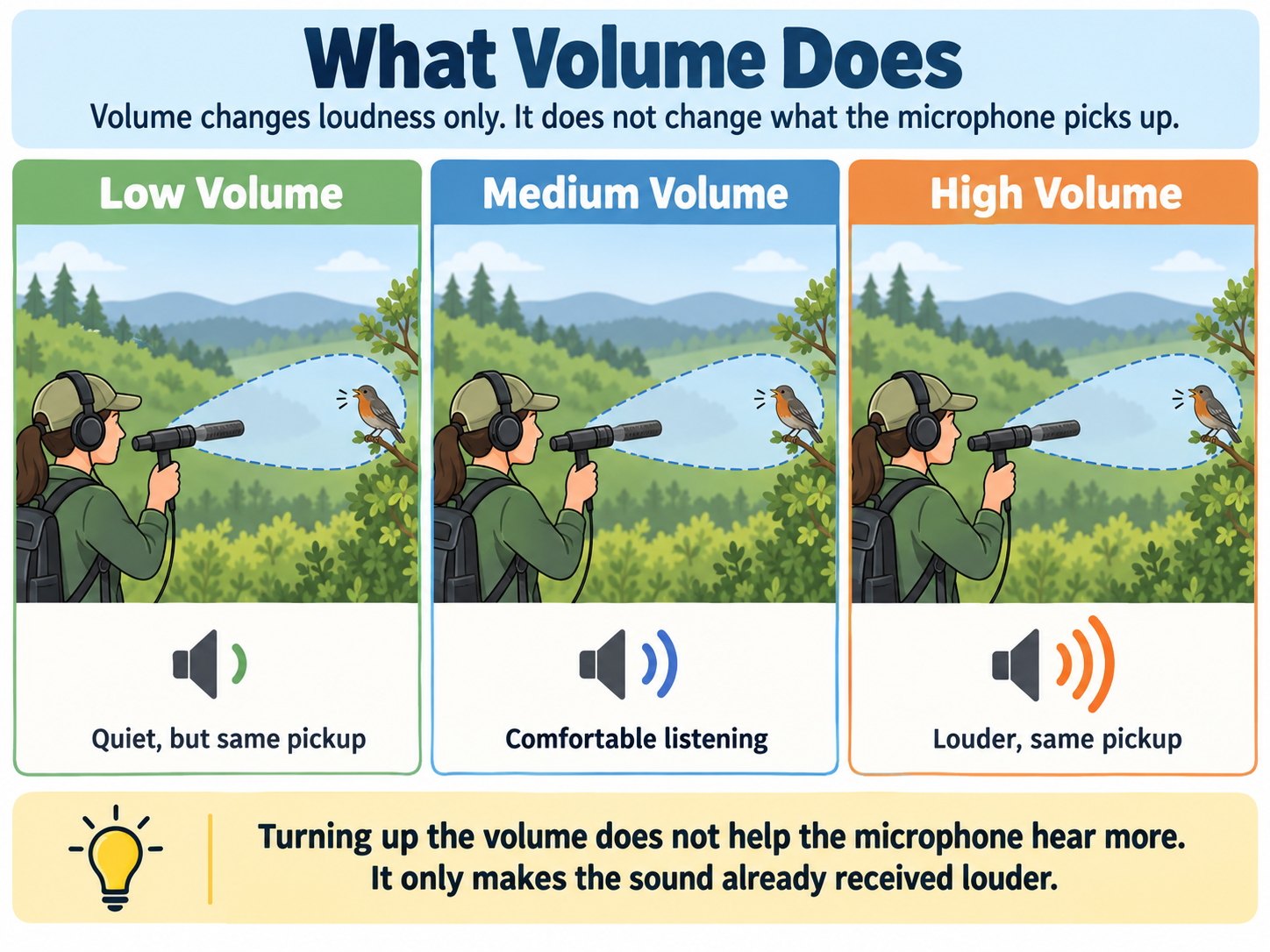
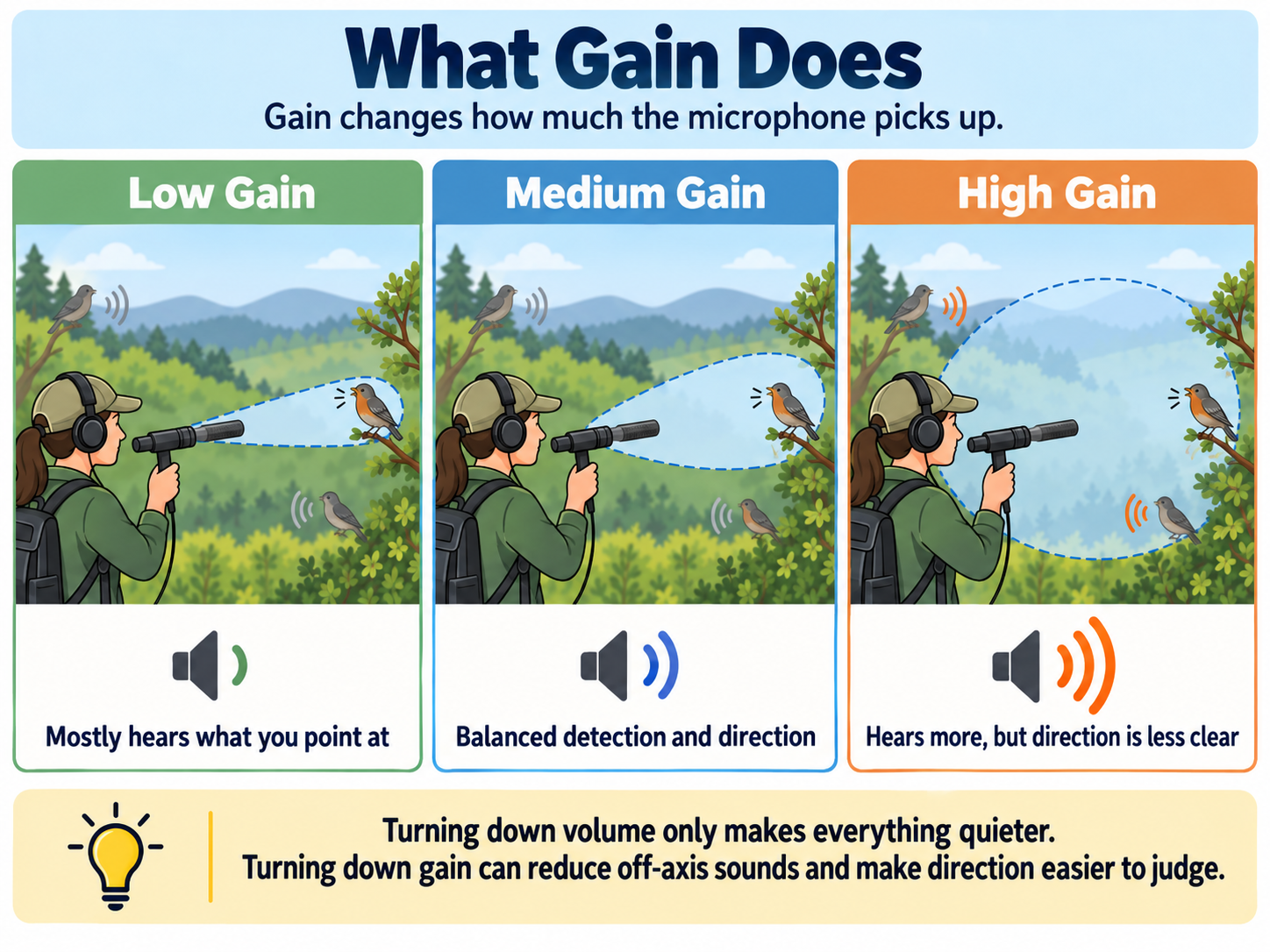
The same idea applies to radio tracking, and in this case, the antenna is like the microphone. The volume knob controls how loudly you hear the pulses, but the RF Gain controls how much it's picking up.
A Yagi antenna is like a microphone designed to hear best in one direction. This makes it useful for direction-finding, but a strong signal can still be heard from the sides or behind it. Even with a Yagi, gain control is still important. An omnidirectional antenna, or omni, receives about equally from every direction, so it's better for detection than for localization.
A common way to locate a signal is to set the volume to a comfortable level, then reduce the RF Gain and slowly turn the Yagi. Listen for the pulse to get louder and quieter. When it is strongest, you are most likely pointing toward the signal source.
Note: We've taken some liberties with the technical details in this section in order to make the concepts a bit more transparent.
Screen Layout
The main screen is compact, but carries a lot of information. The exact content of the screen varies depending on what you're doing. For example, during an automated scan, an indicator will show that the scan is in progress. Some screen elements are the same regardless of mode; for example, the top line always shows the RF Gain setting and the battery level.
The screenshots below depict the screen during different sorts of activities. The details of the elements will be explained in more detail in the relevant sections of the manual.
We'll start with the receiver in Memory Mode. In the screenshot below, a signal is being detected. In this case the power meter and beats per minute are displayed. The peak level indicator shows the highest level the signal has reached recently. In this case, the current signal is below the recent peak.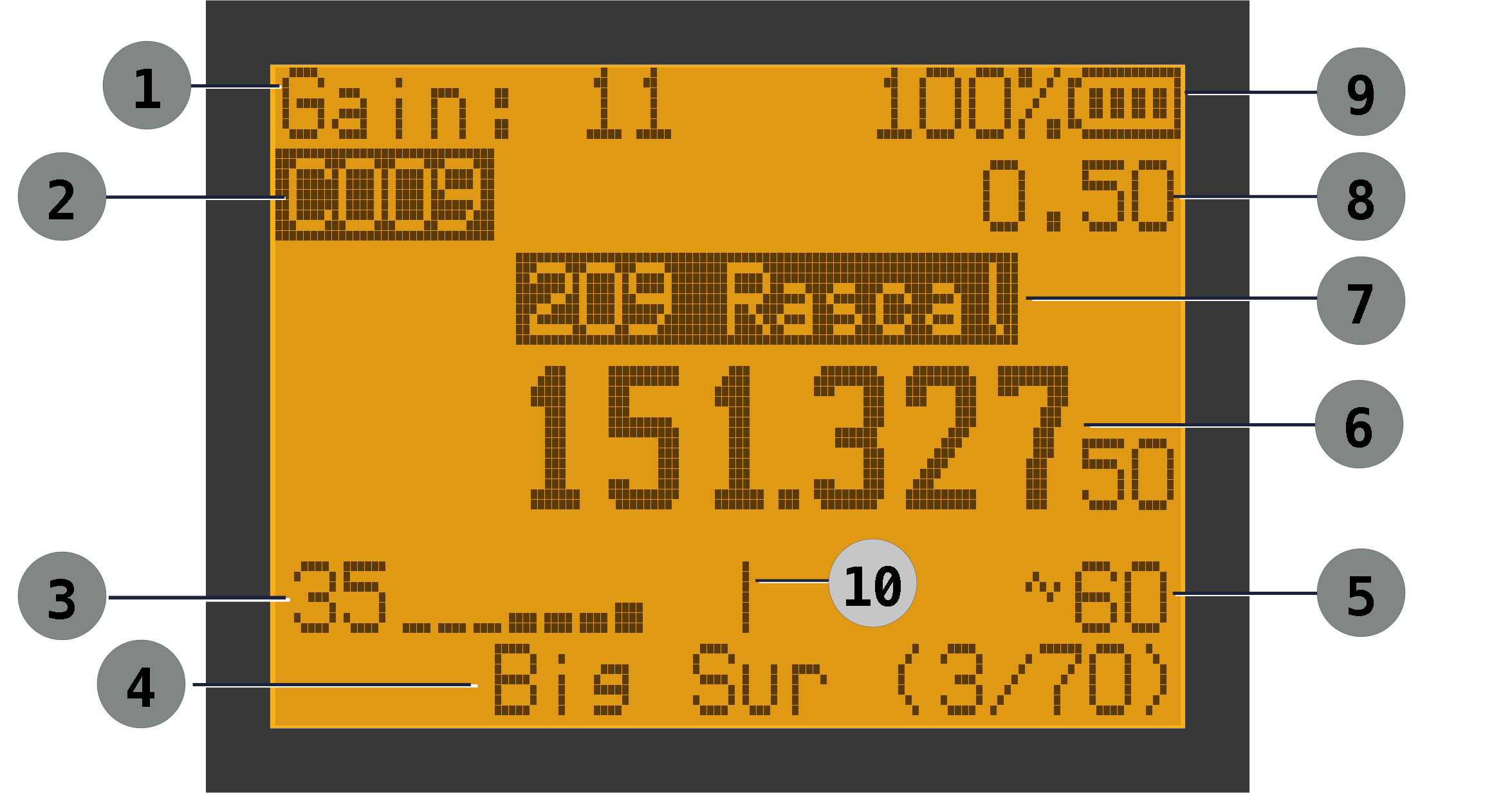
| Main Screen Elements: Memory Mode | ||
|---|---|---|
| ① RF Gain (0-24) | ② Channel | ③ Signal Power |
| ④ List Indicator | ⑤ Beats Per Minute | ⑥ Frequency |
| ⑦ Channel Name | ⑧ Battery Level | ⑨ Peak Level Indicator |
In ID Mode, the screen is very similar, but instead of displaying a channel number, it displays the animal ID. The label ID indicates that ID Mode is active.
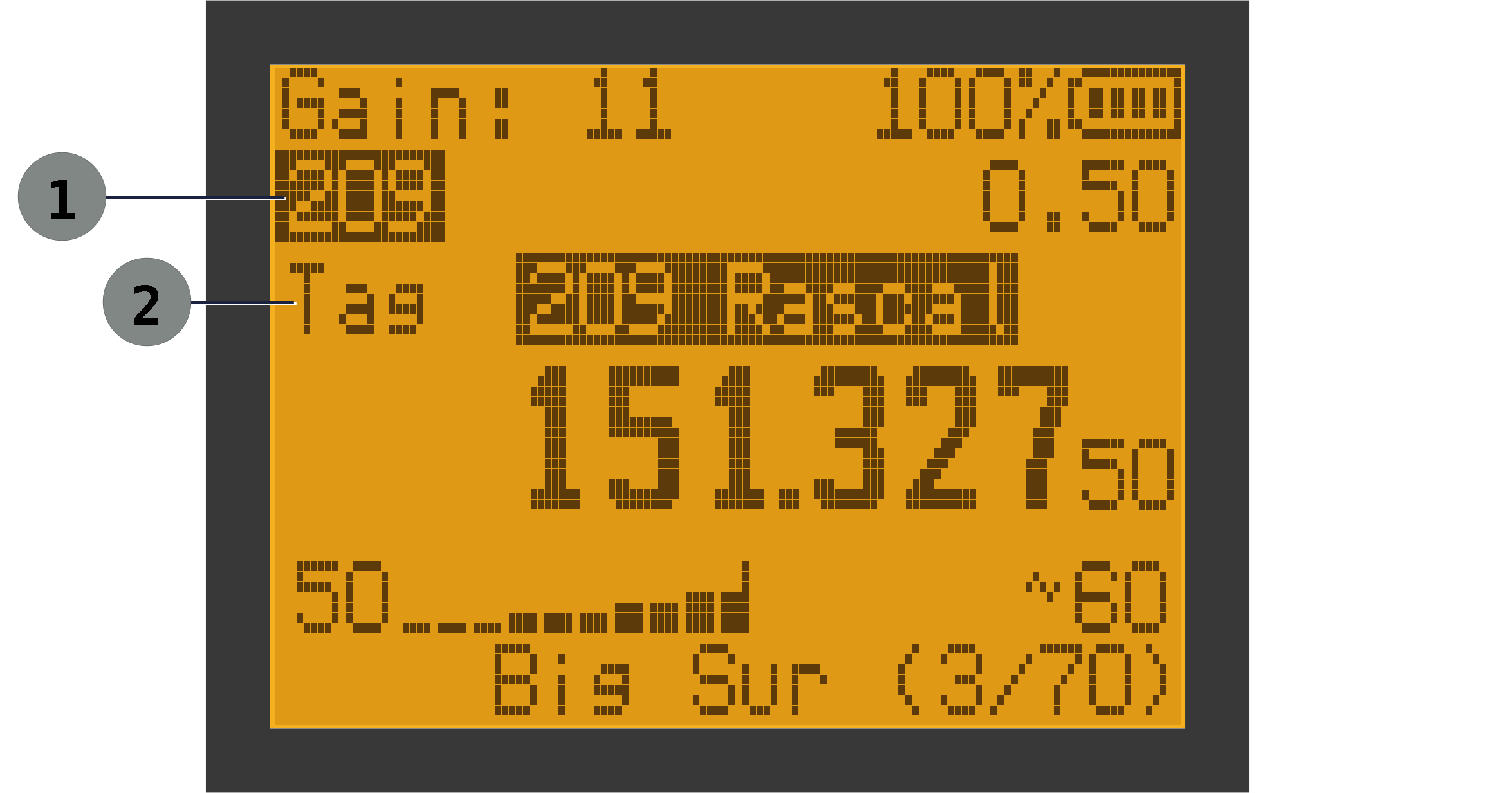
| Main Screen Elements: ID Mode | ||
|---|---|---|
| ① Animal ID | ② ID Mode Indicator | |
We display the word Scan to indicate when we are in Scan Mode. The List Indicator will update automatically as the scan progresses. A countdown indicator shows how many seconds are left in the scan of the current channel.
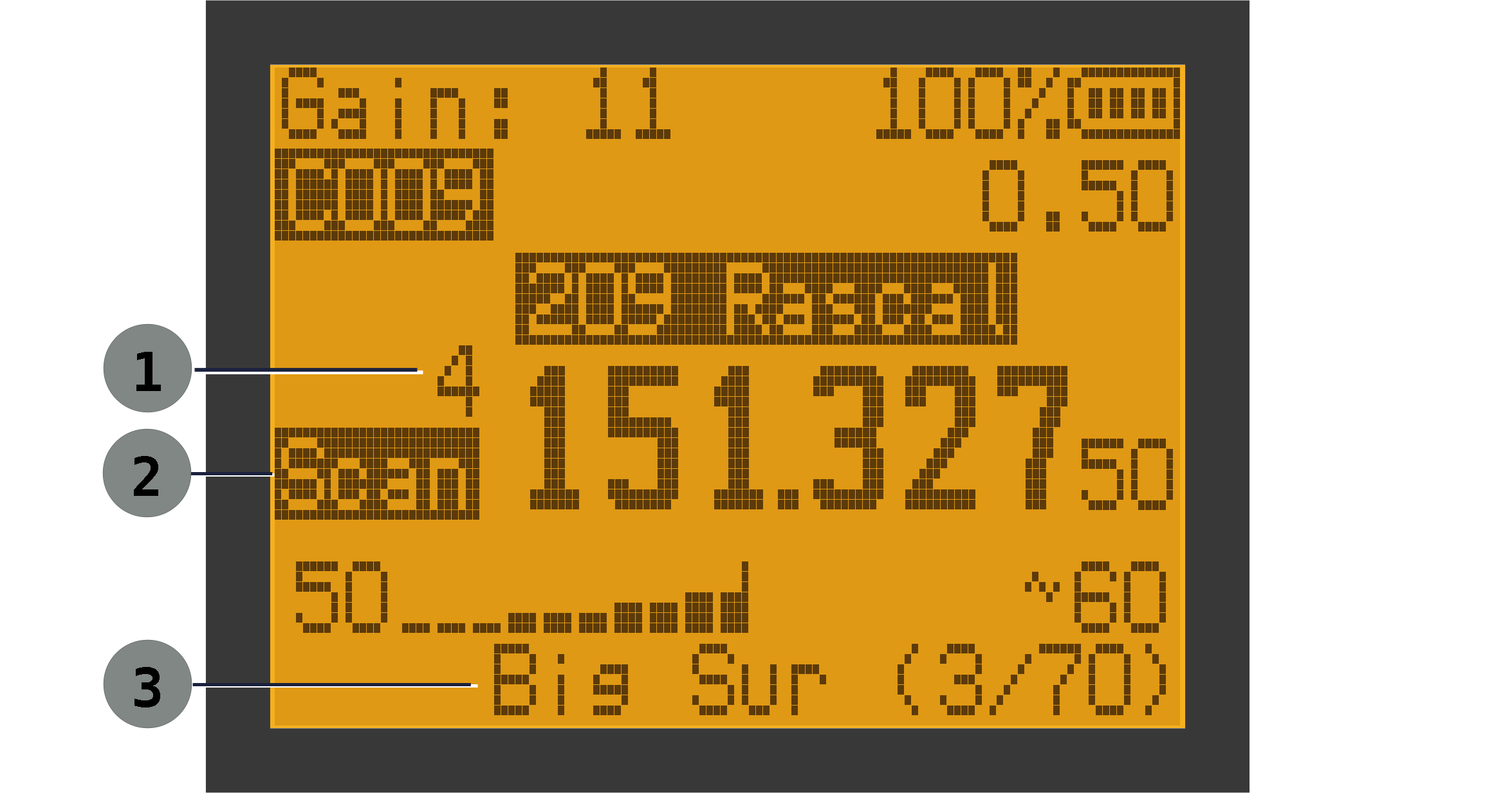
| Main Screen Elements: Scan Mode | |||
|---|---|---|---|
| ① Countdown Timer | ② Scan Indicator | ③ List Indicator | |
Adjust Mode allows the displayed frequency to be adjusted using the ▲ / ▼ keys. The word Adjust is displayed along with the size of the adjustment step. If the current frequency is different from the original frequency, an asterisk will be appended to the indicator: Adjust*.
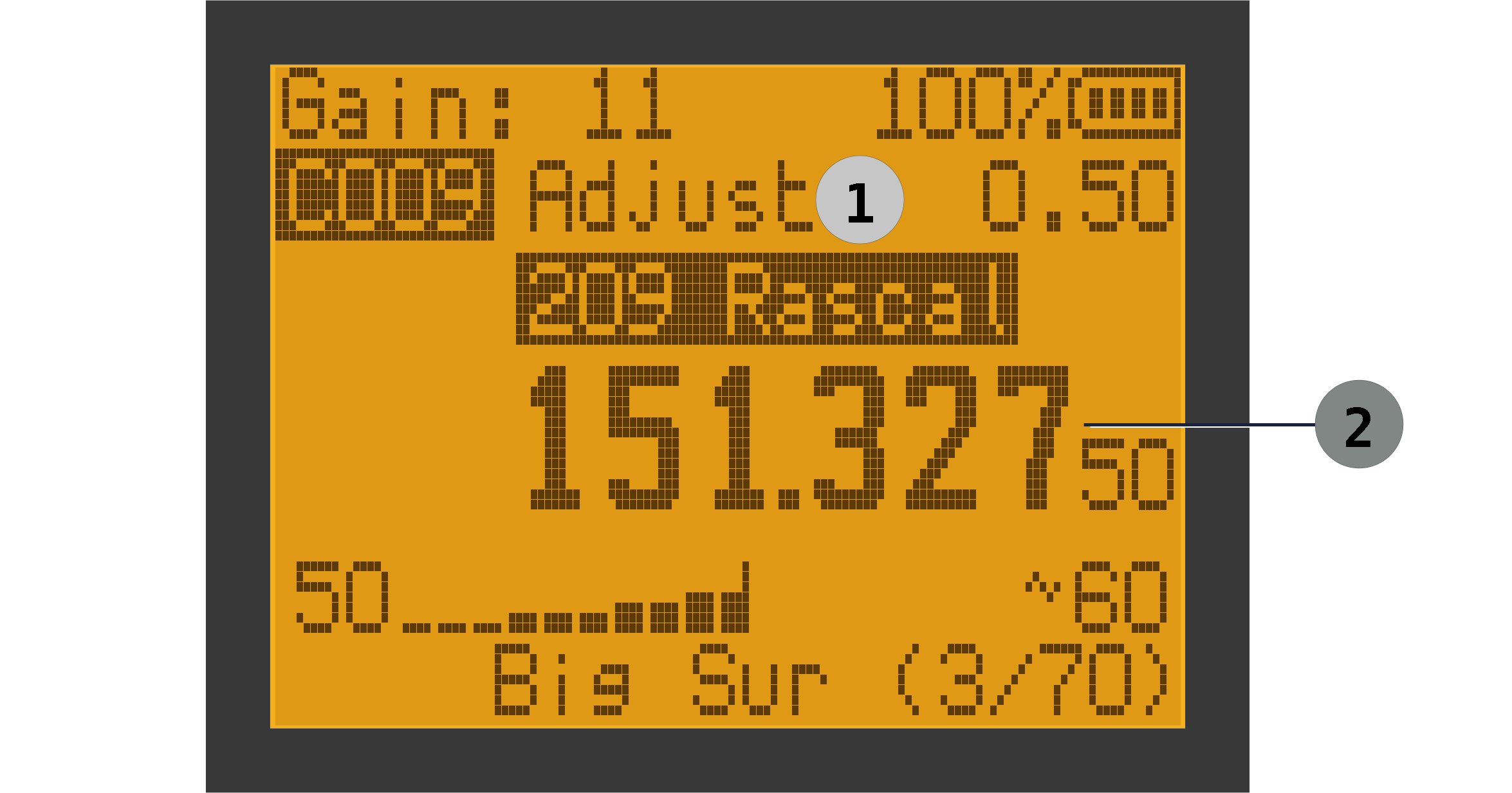
| Main Screen Elements: Adjust Mode | ||
|---|---|---|
| ① Adjust Mode Indicator | ② Frequency | ③ Step Size |
If we switch to Frequency Mode, the display is similar, but shows fewer fields:
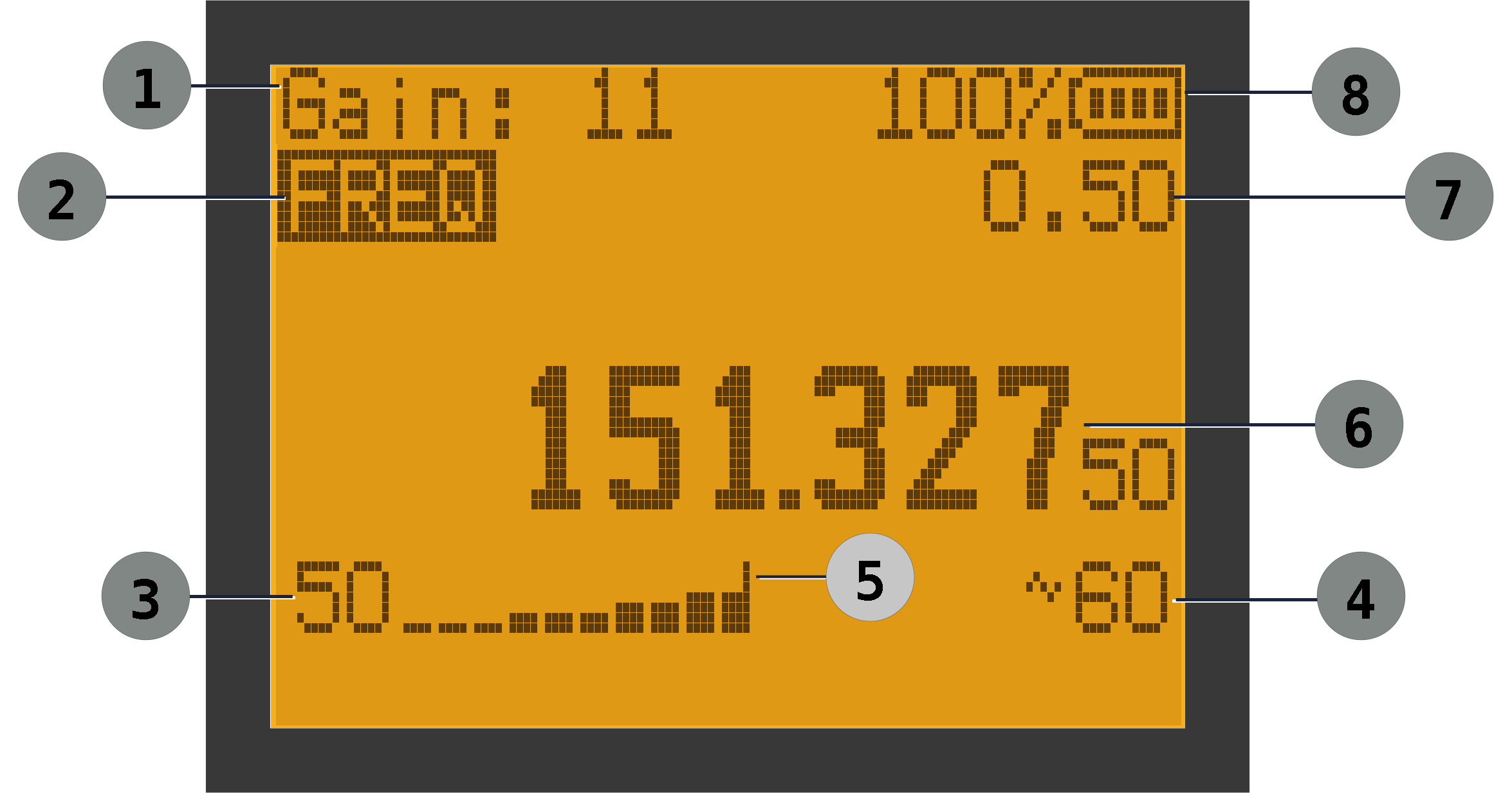
| Main Screen Elements: Frequency Mode | ||
|---|---|---|
| ① RF Gain (0-24) | ② Frequency Mode | ③ Signal Power |
| ④ Beats Per Minute | ⑤ Peak Level Indicator | ⑥ Frequency |
| ⑦ Tuning Step | ⑧ Battery level | |
When entering numbers (e.g. a frequency in frequency mode, a channel number in memory mode, or an ID in ID Mode) the screen will show the in-progress value as it is being typed.
The OVR Indicator
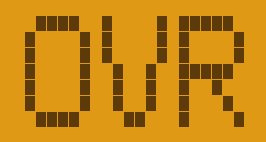
When tuned to a channel in Memory mode or Frequency mode, you may see an OVR indicator in place of the Beats Per Minute indicator. This means the receiver is constantly receiving a signal. If you're hearing consistent pings but are seeing the indicator, it usually means that the gain is too high. If you're not hearing pings, but see the indicator, it usually means there is strong interference on the frequency.
Basic Operation
This section describes the normal day-to-day operations of the SPOT receiver.
Powering On
Turn the receiver on with the power/volume control.
After startup:
- Confirm the receiver powers up normally.
- Check the battery status on the display. Charge or swap the battery if needed.
- confirm that you are in Memory Mode. If you aren't press F - 3 to switch to it.
Selecting a Memory Channel
To move sequentially through channels use the ▲ and ▼ keys. to jump directly to a specific channel, enter the channel number directly from the keypad, then press the M key. For example, for channel 35, press: 3 5 M. Note: If no key is pressed for a few seconds while entering digits, entry times out and is canceled. You can also cancel by pressing EXIT.
Navigating by ID
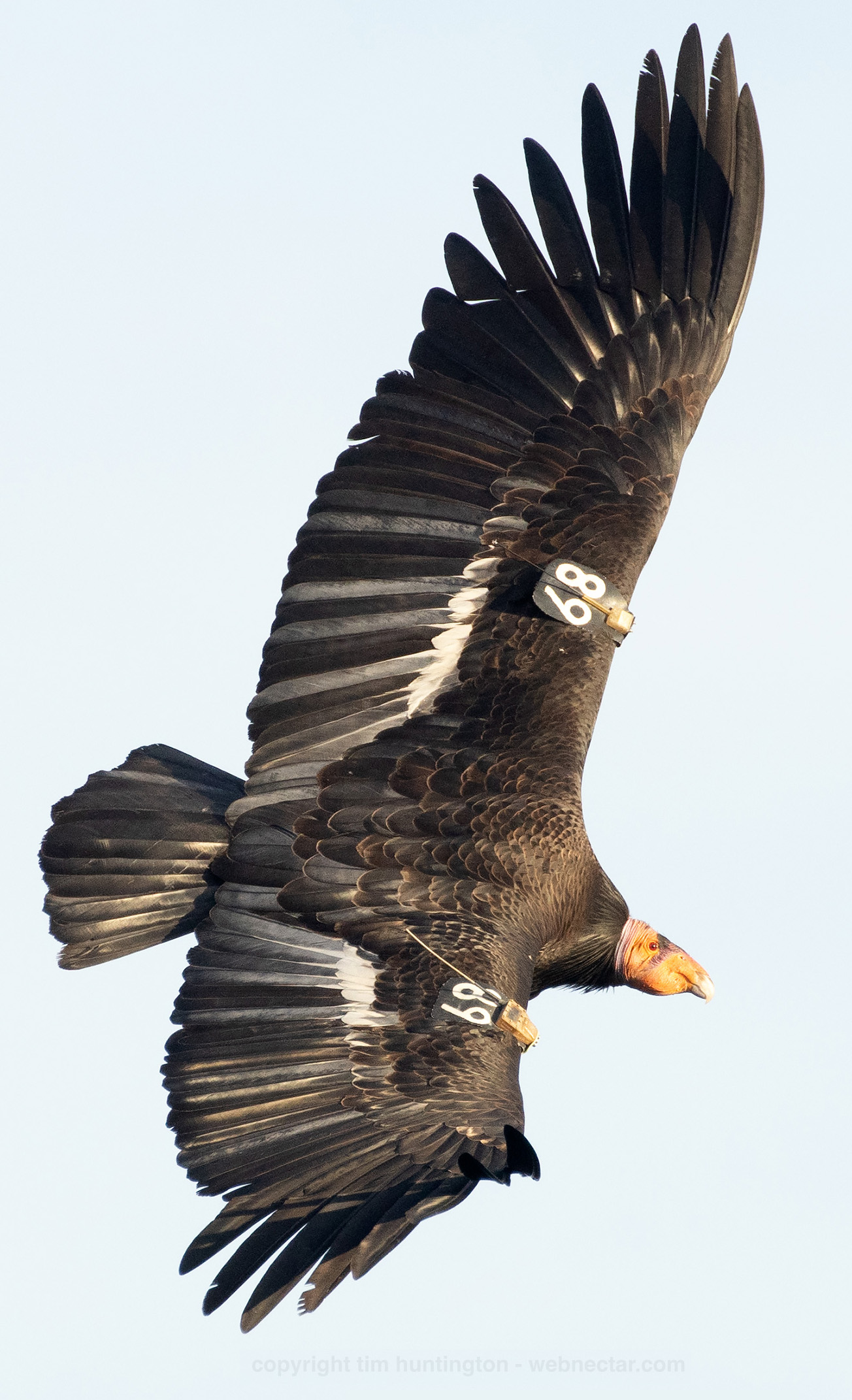
An animal ID identifies an individual animal and may be displayed on the animal for visual identification. Check out the image to the left for a great example of a California Condor with a tag attached to each wing, and markers displaying its ID. Operators often know these IDs very well and use them as a primary way of referring to animals. SPOT facilitates easy navigation to a particular animal ID, regardless of its channel number, using ID Mode.
If you have named your channels with animal IDs, you can navigate to an animal by entering its ID rather than a channel number. For example, if a channel name begins with an ID, such as "209 Left W", enter 2 0 9 M to navigate to the first matching channel.
To use ID Mode:
- Set (Navigation Mode) to , or use the shortcut F - 9.
- Type the ID using 0 - 9 (1 to 4 digits). Then press M. It's just like entering a channel number.
If a matching ID is found, the receiver jumps to the first matching channel. Remember, a single animal may have more than one tag. If no match is found, the receiver emits an error beep and stays on the current channel.
The ID will be displayed o the screen in place of a channel number. You can still use the ▲ and ▼ keys to move through memory. If you run across an entry that does not begin with a valid ID, the display falls back to the normal channel label (for example C077).
Naming your channels:
- the channel name must begin with digits to be navigable by ID
- the ID may be 1 to 4 digits
-
any non-digit character ends the ID (for example,
209Rascalis treated as ID209) -
leading zeros are ignored for matching (
0123matches ID123) - if any animal has multiple tags, the receiver jumps to the first match it finds in memory
Flipping Between Channels (Ping-Ponging)
Sometimes you may wish to quickly flip between monitoring two channels. For example, two birds may be in your vicinity. If they were right next to each other in memory, you could use the ▲ / ▼ keys to ping-pong between them. Since that rarely happens, SPOT provides an alternative.
Let's say that our two birds have IDs 209 and 1182. You could tune to the first using ID Mode (enter 209). Then enter 1182 to switch to the channel with that ID. Now, just press F - 2 to ping-pong between them. Like other shortcuts, you can also just long-press 2, which can be easier for one-handed operation.
You don't have to use ID Mode to take advantage of this feature. SPOT will ping-pong between the most recent two channels regardless of how you entered them.
Adjusting RF Gain
RF gain is an important control for localizing a signal. We discussed it in detail above (see Understanding RF Gain). Your organization may have specific guidance and best practices for using this control. If so, follow their advice in preference to the generic information practices in this manual.
Note that the RF Gain setting is not saved when you power off your device. Every time you turn on your SPOT receiver, the RF Gain will be set to the default value programmed into it. This is a value you can set yourself in SPOT Editor, or your organization may specify a default value when they program your receiver.
The F - 7 shortcut also resets the gain setting to its default. You can find more details below.
Listening
A valid telemetry pulse usually presents as a short "ping" in a repeating pattern (listen). The tone will change pitch slightly as you tune around the signal.
When listening:
- pause long enough to hear more than one pulse
- avoid changing frequency too quickly
- compare nearby tuning positions if the signal is weak
At first, focus on answering two questions:
- Is the signal present?
- Does it repeat in a regular pattern?
The power meter and the Beats Per Minute areas on the screen will help you answer both questions. If the answer to both is yes, you can move on to localizing the source.
Adjusting a Memory Channel
You can fine-tune a stored memory channel directly using Adjust Mode.
Enter Adjust mode with F - 8. The word Adjust will appear above the channel name, along with the tuning increment (step).
In Adjust mode:
- use ▲ / ▼ to adjust the frequency.
- press F - 8 again to save your change, or...
- press EXIT to discard your change
The tuning increment is controlled by the current channel's
value. For example, if
is
, each press of the ▲ / ▼ keys will change the frequency by 0.5kHz which is 500Hz.
Listening for a tag that is not in memory
Though you will normally be using frequencies that are stored in memory, you may wish to enter a new frequency directly. That's when you use Frequency Mode. To switch to this mode, press F - 3. Now you can enter any desired frequency from the keypad. There is no dot key on the keypad. SPOT will automatically add a dot after the first three digits. If you enter 1 5 3 9 2 5, that is a frequency of 153.925MHz.
Use this approach when:
- testing a new frequency
- checking a temporary assignment
- working from field notes rather than a preloaded memory list
You can return to normal operation, Memory Mode, by pressing F - 3 again.
Saving a Useful Frequency
If you find a frequency you want to keep, save it to memory:
- Tune to the desired frequency.
- Open the menu.
- Use to choose the destination channel.
- Save the channel.
- Use later if you want to give it a useful label.
Lists
While you're tracking there may be times when you want to focus on a subset of animals. For example, they may be spread through a large geographic area, and you want to focus on one or two specific areas. You might also have animals that are of particular interest. Perhaps they are new, or haven't been spotted for quite some time.
To help in situations like these, SPOT allows you to put channels into named lists, like Region 1 or Missing. Then you can focus on one or more of these lists (the "active" lists), rather than everything in memory. When you've selected one or more lists to be active, you can scan through each of the channels either manually (using the ▲ / ▼ keys), or automatically using the scan function.
SPOT supports 16 lists in addition to the built-in list named ALL. The latter contains every active channel in memory.
To recap, we have:
- Channel: A slot in the the receiver's memory that stores information about one tag on one animal. The channel stores the frequency and the channel name. SPOT can store up to 200 channels.
- List: A named group of channels. You may define up to 16 lists. Each list can contain any or all of the 200 channels.
- Active Lists: A set of lists whose channels are currently of interest. They can be scanned either manually or automatically.
Let's look at a concrete example. You might have the following channels programmed into your receiver:
| # | Name | Frequency | Lists |
|---|---|---|---|
| 1 | 209 Rascal | 155.00100 | Region1, Important |
| 2 | 569 Bluey | 155.30100 | Region1 |
| 3 | 665 Tomboy | 155.40100 | Kit Peak |
| 4 | 726 Rocky | 155.45100 | |
| ... | ... | ... | ... |
| 87 | 747 Echo | 155.35000 | Region1, Important |
| ... | ... | ... | ... |
| 150 | 1138 Blanco | 155.45000 | Missing, Important, Red Cnyn |
This shows that channel 1 is named 209 Rascal, it is at a frequency of 155.00100 MHz, and it is a member of two lists: Region1 and Important. Channel 4, 726 Rocky, is not a part of any lists, and channel 150, 1138 Blanco, is a member of 3 lists: Missing, Important, Red Cnyn.
Now let's look at an example set of lists:
| # | Name | Active |
|---|---|---|
| 1 | Region1 | |
| 2 | Red Cnyn | ✅ |
| 3 | Kit Peak | |
| 4 | Luna St | |
| 5 | Important | ✅ |
| ... | ... | ... |
| 14 | L14 | |
| 15 | L15 | |
| 16 | Ad Hoc |
In this example we have defined 5 of the 16 available lists (the last list is named Ad Hoc by default). You can also see that some of them are marked active and others are not. Only channels in the active lists will be included as you move through the channels in memory.
Let's say that the list named Red Cnyn contains 12 channels corresponding to animals that are typically seen in that area, and the Important list contains 5 channels corresponding to animals that you always want to search for. By making both lists as Active, all 17 entries (and only those entries) will be included as you automatically or manually move through the channels.
Choosing Active Lists
To select the lists you'd like to focus on, use the menu item. You can select one or more lists. You may also select ALL. If you do so, any previously selected lists will be deselected since ALL includes all memory channels. Similarly, if ALL is currently selected and then you select another list (e.g. Region 1), ALL will be deselected.
The bottom line of the display always shows the current list and the progress through that list. For example: Important (7/9), means we are currently focused on channels in the list named Important, and we're on channel 7 of 9 in that list.
List Names and Membership
By default, your 16 available lists will have generic names like L1 and L2.
Those aren't very memorable, so you can give them more useful names like the ones in the example above.
Each list name can be up to 10 characters. You'll also want to specify which channels are in which lists.
The best way to perform both of those tasks is to use SPOT Editor. We talk about in the section on programming and it has its own manual.
However, if you're in the field and need to use the on-device menus, you can. Use the menu item for names, and the menu item for membership. The former will let you (somewhat laboriously) enter a name. The latter shows all the lists, with asterisks next to the lists which contain the current channel. Use ▲ / ▼ to move between lists, press M to toggle membership, and press EXIT when finished.
Scanning
The receiver can automatically scan through channels for you. To start the Scan function, press the Scan button. The word Scan will appear on the screen. You can stop the scan at the current channel by pressing Scan again. Scan-on, Scan-off. Pressing EXIT will also stop the scan, but the receiver will revert back to the channel that was in use when the scan started.
Only channels that belong to the active lists are scanned. Of course, if the active list is set to ALL, then all channels will be scanned. If you wish to move to the next active list immediately, press F - Scan.
Dwell Time
The length of time the receiver will stay tuned to a channel before moving to the next is called the Dwell Time. It is controlled with the menu option. You have choices ranging from 1 to 30 seconds. While the scan is in progress, the display will show a countdown clock of how many seconds are left for the current channel.
When the receiver detects a signal while scanning, it can either stop the scan or just continue as usual after the dwell time has elapsed. This behavior is controlled by the menu item. The choices are or .If you choose the option, the scan will only stop if SPOT believes it has heard several pulses.
If you are in a noisy RF environment (one with other stray radio signals), then a scan may stop even though there is no telemetry signal present. SPOT tries to distinguish real signals from background noise, but it can be fooled. If a scan stops prematurely, hit Scan again to resume the scan. If it gets too annoying, set to .
Again, though you can control these items using the menus, they can also be set using SPOT Editor.
Ad Hoc Mode
Even when you've carefully prepared your lists in advance, there may be times when you just want to make a list on the spot. For example, you may find yourself in a location where certain birds are known to hang out. You'd like to be able to easily scan for just these few tags. You could use the menu system to populate an unused list with those birds, but you might find it too cumbersome.
Ad Hoc Mode addresses this by making it very easy to specify a short list of channels or IDs, and start using that list immediately as if you had set it up in advance. The idea is: press a key to enter Ad Hoc Mode, type channel numbers or IDs, use the list, exit Ad Hoc Mode. Let's look at an example where we are in ID Mode and want to focus on IDs 209, 334, and 1186. Here's what we'd do:
- Long press 5 (or F - 5) to enter Ad Hoc Mode
- Enter the IDs:
- 2 0 9 M
- 3 3 4 M
- 1 1 8 6 M
- Use the list. Navigate as usual with the ▲ / ▼ keys and/or use the Scan function.
- Long press 5 (or F - 5) to exit Ad Hoc Mode
That's it. When you exit, you'll be right back where you left off before you entered - same active lists, same active channel.
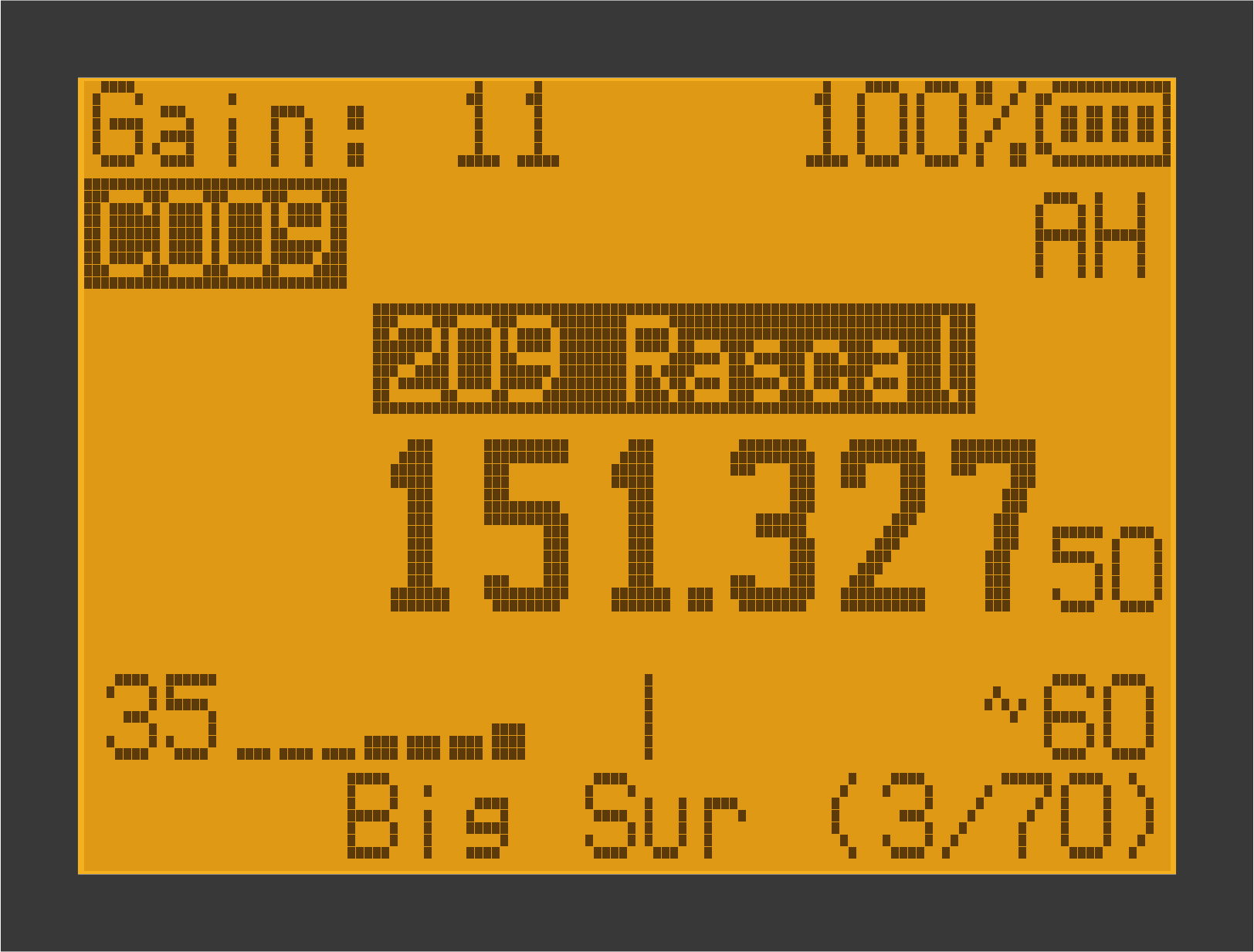
During normal tracking, you may come across a channel or animal ID that you want to add to or remove from the Ad Hoc list. Long press 6 (or use F - 6); this is equivalent to entering Ad Hoc Mode, entering the current channel or ID, and then exiting. If the selected channel or ID group is already in the Ad Hoc list, AH appears below the battery symbol.
Some additional notes:
- While in Ad Hoc Mode, the list name (Ad Hoc by default) will be highlighted. That's a quick way to know that you're in Ad Hoc Mode.
- If you want to clear out your ad hoc list and start with new channels or IDs, just long-press EXIT while in Ad Hoc Mode and you'll be back to an empty list and ready to start adding a new set of entries.
- If multiple channels begin with the same ID, entering that ID adds all of them to the Ad Hoc list. If any are already in the list, entering the ID removes all of them.
- We automatically use List 16 for the ad hoc list. You can change its name if you'd like. You can also use it as a normal list even when you're not in Ad Hoc Mode. This makes it easy to create an ad hoc list quickly and add it to a pre-existing list by setting both as active.
Preparing for a full scan
You may have been tracking a subset of channels using one or more lists, but now want to scan for all channels (sometimes referred to as performing a full set). Use F - 7 to quickly set the active list to ALL and move to the first channel. Press Scan when you are ready to begin. This shortcut also resets the gain to its default value, which is also useful when an operator is about to perform a full scan. As usual for shortcuts, long-pressing 7 will perform the same action.
Signal Indicators
In addition to the repeated "pings" you'll hear from a nearby tag, SPOT will display additional information once it believes it has a detection. This information will help you identify and characterize the source. There may be times when a very faint signal is still audible to a human, but SPOT isn't willing to declare it as a signal. You should characterize those signals as weak.
Using the MeterWhen SPOT believes it has identified a signal, it will display a power level (from 0 to 99) and a signal meter (see screenshots above). This gives visual support for what you are hearing. When enabled using the
Use the audible ping as the primary clue, and use the meter to confirm it and characterize the signal strength. When enabled using the menu, the power level will be preceded by a single character: W, M, or S: weak, medium or strong.
The meter is most useful when:
- sweeping a directional antenna across an arc
- comparing one direction against another
- checking whether a repositioning step improved or worsened the signal
The power meter includes a peak hold function. The peak signal level over the last few pings is displayed a vertical line in the meter. It can help when signals are brief. It can help with inconsistent signals or when comparing strengths in different directions.
Beats Per Minute
Once SPOT has detected a repeating signal it will display a BPM indicator to the right of the power meter. BPM stands for beats per minute - in other words, how often the ping is being heard. For example, 60 BPM is 60 beats per minute, or 1 beat per second. If the signal is lost, the BPM indicator will no longer be displayed.
You can enable/disable this indicator using the menu item.
Menu Options
The menus are grouped into related items as shown below.
Menu Navigation
- Press M to open the menu.
- Use ▲ / ▼ to move through menu items.
- Press M to begin choosing a menu value.
- Use ▲ / ▼ to change the value.
- Press M to save the new value.
- Press EXIT to leave the current item or leave the menu.
- Once you've entered the menu system, you can type the number of the menu item you're interested in to get there quickly.
An example menu screen is shown below. In this case it is the menu that allows you to choose which lists are selected to be scanned.
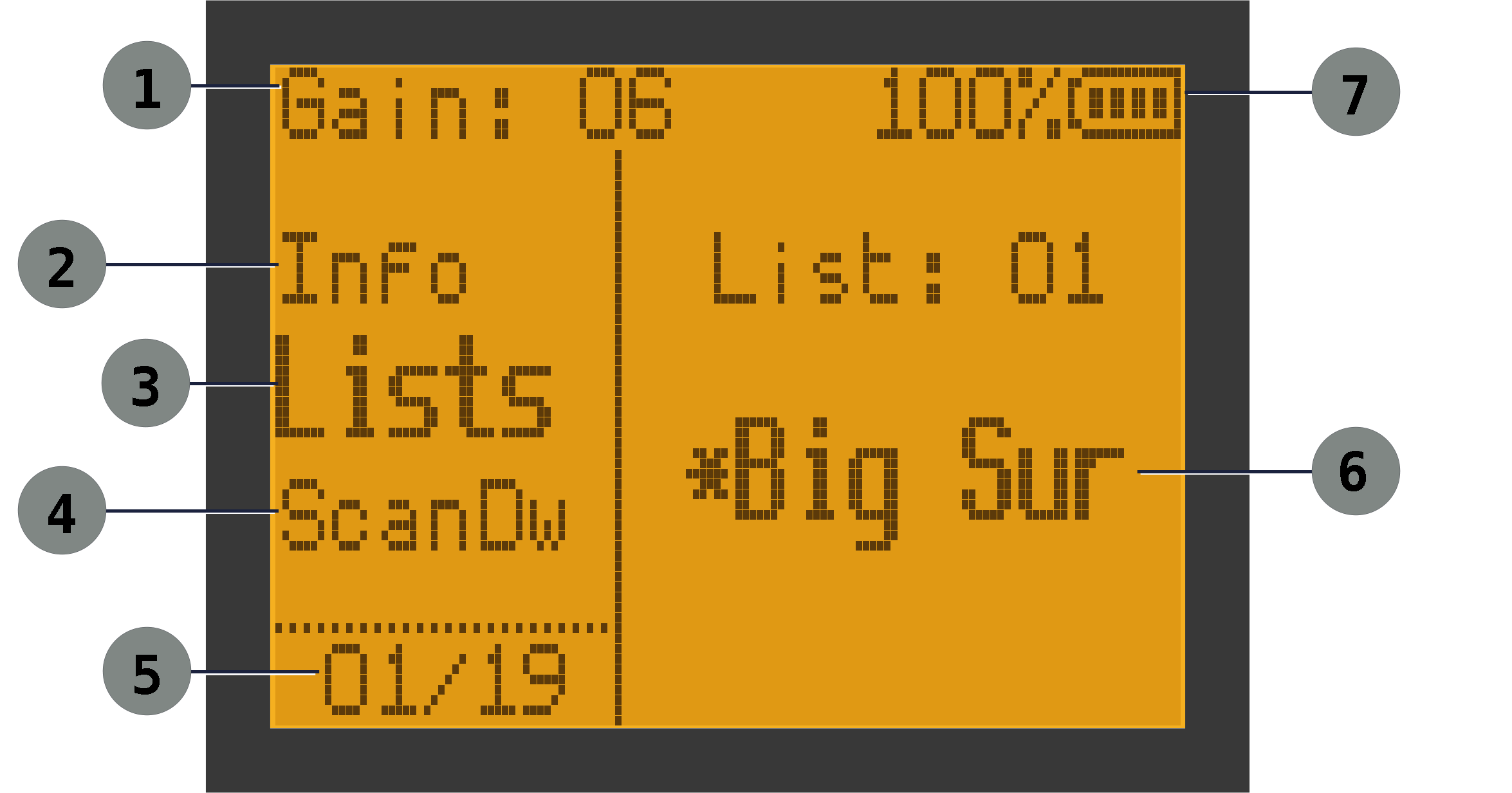
| Menu Screen Sample | ||
|---|---|---|
| ① RF Gain (0-24) | ② Previous Menu Item | ③ Active Menu Item |
| ④ Next Menu Item | ⑤ Menu Item number | ⑥ Menu Value |
| ⑦ Battery level | ||
List of Menu Items
Enter the menu system by pressing the M button. Once you're in the menu system, you can jump directly to a desired menu item by entering its number.
Programming
It is possible to program your radio completely from the menu system. It is, however, a laborious process, particularly if you have many memory channels. The better option is to use a companion application and create all the settings on your computer and transfer them to the receiver using a USB cable. Both options are outlined below.
SPOT Menus
You can program the radio entirely from the on-device menu system, but it won't be fun. We suggest using SPOT Editor (see below). However, there may be times in the field where you want to make a change; e.g. adding a channel. You can do this by setting the frequency and step while in frequency mode. Then use the and menu items. You can also add it to Lists of your choosing using the menu item.
Alternatively, you ca start with an existing channel from memory mode, copy it to frequency mode, then make whatever alterations you would like. To do this, press F - 1 while you have the source channel selected in memory mode.
SPOT Editor
SPOT Editor is an application that allows you to do all of the receiver setup on your computer, then transfer it to the receiver with the click of a button. This includes creating channels, putting them in lists, setting receiver options, etc. It even allows you to update the firmware on your receiver when newer versions become available. It can also read the settings from a receiver. This makes it easy to clone the settings from one receiver to another, or have a master setup that can be easily programmed into many receivers.
SPOT Editor is the preferred and recommended way of programming your receiver. It has its own manual, so we won't go into more depth here.
There is actually an even better way to program your receiver - your organization can integrate SPOT Writer into its web site / database. This allows users to program their receiver directly from the web site that they already use. Developers can find information about this in the SPOT Writer Web Integration Guide.
Before a firmware update: save the receiver configuration with SPOT Editor. Some firmware updates change the receiver's storage format and require the receiver to be reprogrammed afterward. Check the release notes for the update, then write the saved configuration back to the receiver and verify its channels and lists before field use.
Battery, Charging, Power
Overview and Installation
The receiver uses rechargeable 7.4 Volt batteries. The most common battery has a 1600 mAh capacity, but a larger 2200 mAh version is available. The capacity determines how long your receiver will operate on one charge. The standard battery should provide about 12 hours of operation.
The receiver reports battery information both on the main status line and in the Info menu. You can also choose to show the voltage on the startup screen. While the nominal battery voltage is 7.4V, a fully charged battery will read closer to 8.4V.
Installation: To install the battery, align the battery pack with the grooves on the top of the rear compartment on the receiver. Push the battery upward and push the bottom of the battery into place. You'll hear a click when the battery is seated. . Slide the battery upwards until it clicks into place. To remove the battery, press in on the release button at the bottom of the battery and pull the bottom outward. It will then slide out of the receiver.
Charging
- Desktop charger: Your unit is provided with a desktop charger that plugs into a normal AC outlet. You can slide a battery into the charger, or insert your receiver with battery still attached. It will recharge the battery in about 4 hours according to the manufacturer. There is an LED on the charger that will display red while charging and green when charging is complete (or no battery is inserted).
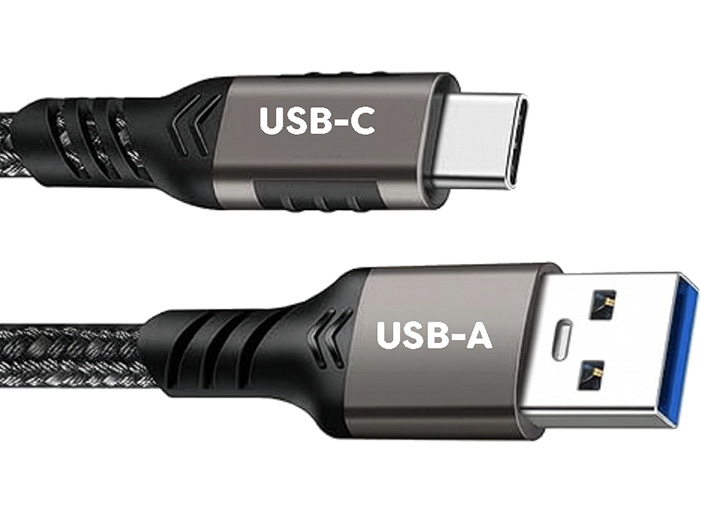
- USB Charging: You can also charge your battery using a USB cable, but according to the manufacturer, it will only partially charge your battery, and the desktop charger is preferred. To charge with USB, plug one end of the cable into a power source such as a charger or computer USB port. Plug the other end (USB-C) into the receiver by flipping up the bottom side of the rubber flap on the right side of the radio to expose the USB port.
When charging begins, the receiver's power light will turn blue. When charging is close to complete, you may see the blue light flash. The light will remain blue until charging completes. At that point you can remove the USB cable and flip down the rubber boot to keep the port covered.
Charging, like programming, requires a USB-A to USB-C cable, rather than USB-C to USB-C. In all likelihood, a pure USB-C cable will not work. You will need a USB-A to use such a cable.
After-market Batteries
There are after-market batteries available with larger capacities. We have not tested, and cannot vouch for, any particular after-market battery. If you do use one, it may provide a separate USB-C charging port on the battery itself. If so, please charge the battery using that port.
Also note that the battery level displayed by SPOT may not be accurate for batteries with capacities other than those listed in SPOT Editor. Future versions of may provide settings for other larger batteries and make the display more accurate.
Operational guidance
- Check the battery level before going into the field
- Use moderate backlight settings to conserve battery
- If a low battery warnings appear, finish critical work and recharge as soon as practical
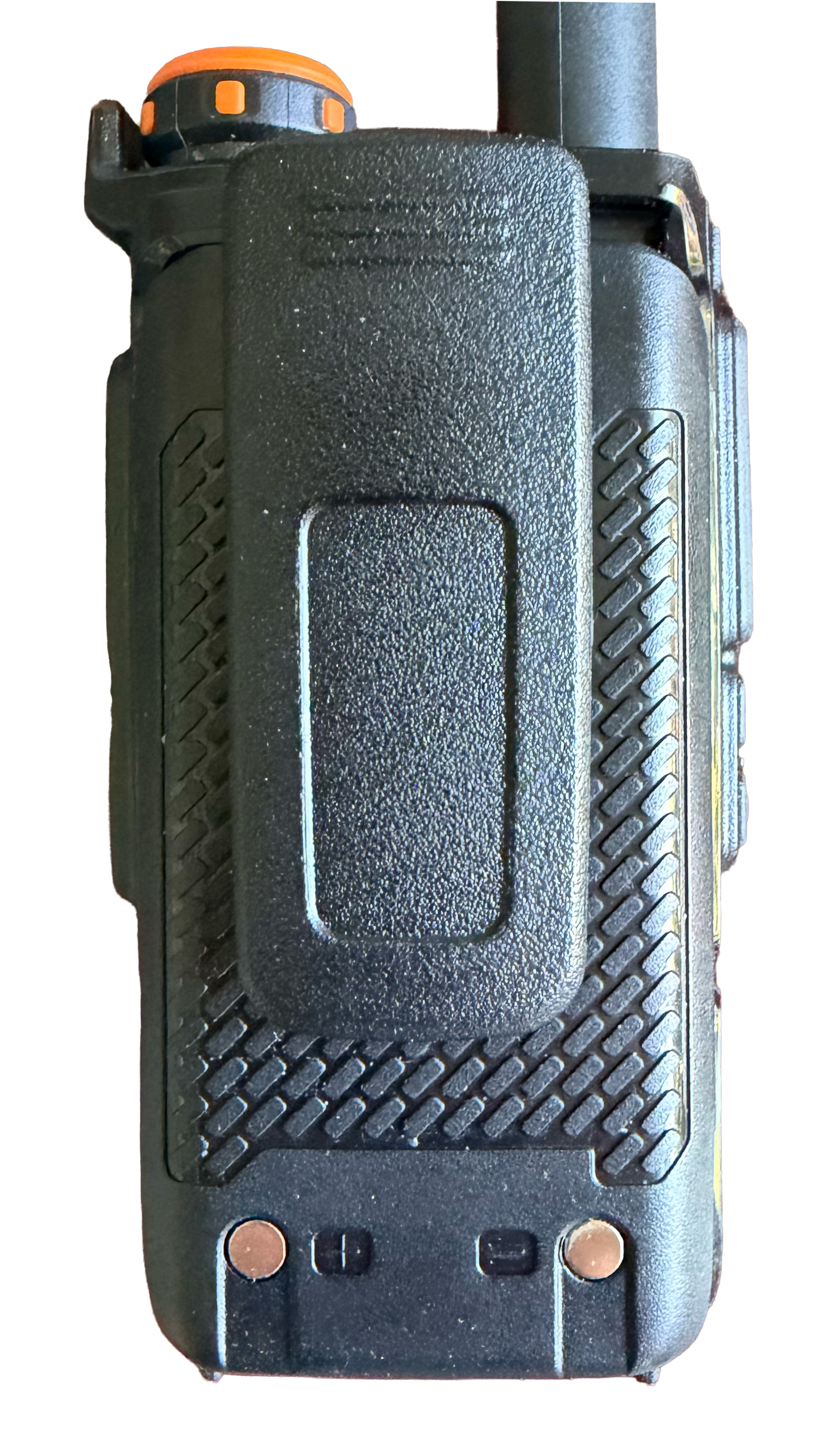
- Note that on the back of the battery, towards the bottom, there are two metal contacts (see image) which are used during charging. When the receiver is stored in your pocket, bag, or backpack, please be sure that the contacts won't simultaneously come in contact with a piece of metal, like car keys. That can short out the battery.
Advanced: Battery Calibration
BatCal in the Service Menu calibrates the receiver's battery-voltage reading. Normally this is set at the factory and does not need to be changed. Use it only when you have a reliable digital multimeter and a reason to believe that the displayed battery reading is inaccurate.
- Fully charge a supported battery with the desktop charger, then let it rest for a few minutes. Do not calibrate while charging through USB.
- Use a digital multimeter to measure the battery's actual voltage. Take care not to short the battery contacts.
- Install the battery, power on the receiver, and enter the Service Menu.
- Select BatCal. The first line shows the voltage calculated by the receiver; the number on the second line is the calibration reference.
- Use the arrow keys to adjust the calibration reference until the voltage on the first line matches the multimeter reading as closely as practical.
- Press MENU to save the new value, then leave the menu. Use EXIT instead if you do not want to save the adjustment.
You do not enter the measured voltage directly. Adjust the number displayed by BatCal until its calculated voltage matches your meter. This setting corrects the voltage reading only; use BatTyp to select the appropriate battery capacity.
Safety and Handling
- Use the receiver only in accordance with local laws and the rules of your study, agency, or project.
- Although SPOT is focused on receiving signals, the hardware does contain a transmitter. Treat the antenna, battery, and charging hardware with the same care you would give any field radio.
- SPOT is not an emergency communications device.
- Use only batteries, chargers, and cables appropriate for the device.
- Keep the device dry, clean, and protected from impact.
- If the device behaves unexpectedly after programming or firmware changes, stop field use until settings and operation are verified.
- Take care when removing or replacing the antenna adapter. This should not need to be done in normal operation.
Troubleshooting
No Signal Heard
- confirm you are on the correct memory channel or frequency
- confirm the antenna is connected
- raise RF gain
- listen long enough for several expected pulse intervals
- ensure nothing is plugged into the headphone port
- If your receiver is absolutely silent, the squelch control may not be set to
0. To see and change the setting, use the Service Menu.
Tone Pitch Seems Wrong
- check that you are near the correct nominal frequency
- tune slightly above and below the expected frequency
BPM (beats per minute) is wrong
- If the number is wrong, but stable, that usually means there is a second signal in the area which has a similar frequency and is adding extra pulses to the count.
- If you hear a single pulse train, and if the meter shows a single pulse train, you can typically ignore an incorrect reading.
- However, that close-by signal may be another transmitting tag, so you may wish to scan for it.
Signal Is Present but Weak or Broad
- adjust RF gain
- fine-tune around the expected frequency
- compare several nearby tuning positions instead of relying on one step
Scan Does Not Stop As Expected
- check Lists (ALL or one or more specific lists)
- if using specific lists, verify the active selection in Lists
- check channel membership via LstMem
- verify OnHit
- verify ScanDw if using DWELL
- remember that this firmware scans memory channels, not arbitrary frequency ranges
Settings Seem Different After Programming
- Your programming tool may have "sanitized" a value that was not valid, and changed it to a default value that is acceptable.
Battery level seems wrong
- You may have incorrect settings describing your battery.
- Check the battery type in the Service Menu (or in SPOT Editor) to ensure you have selected the correct capacity. If not, correct it to match your battery.
- If you have a multimeter, you may follow the battery calibration process.
Reference
Key Commands
Key commands can be invoked using the function key followed by another key, such as F - 8, or equivalently by long-pressing just the individual key. For example, pressing and holding 8 is equivalent to pressing F - 8. Using long-presses is often easier for one-handed operation (e.g. you're holding an antenna in your other hand).
- F - 0: Show an on-screen cheat sheet of all key commands.
- F - 1: copy current memory channel's frequency and step into frequency mode.
- F - 2: ping-pong between the most recent two channels.
- F - 3: Toggle between memory mode and frequency mode.
- F - 4: toggle flashlight when FlEn is set to
- F - 5: Enter / Exit Ad Hoc Mode
- F - 6: Add the current channel/ID to the Ad Hoc list, or remove it if it is already there.
- F - 7: Set the active list to ALL, move to the first channel, and reset the gain to its programmed default value.
- F - 8: enter Adjust mode for the current memory channel; use F - 8 again to save the adjustment or EXIT to go back to the original frequency.
- F - 9: Toggle between ID Mode and Channel Mode.
Receiver Hardware
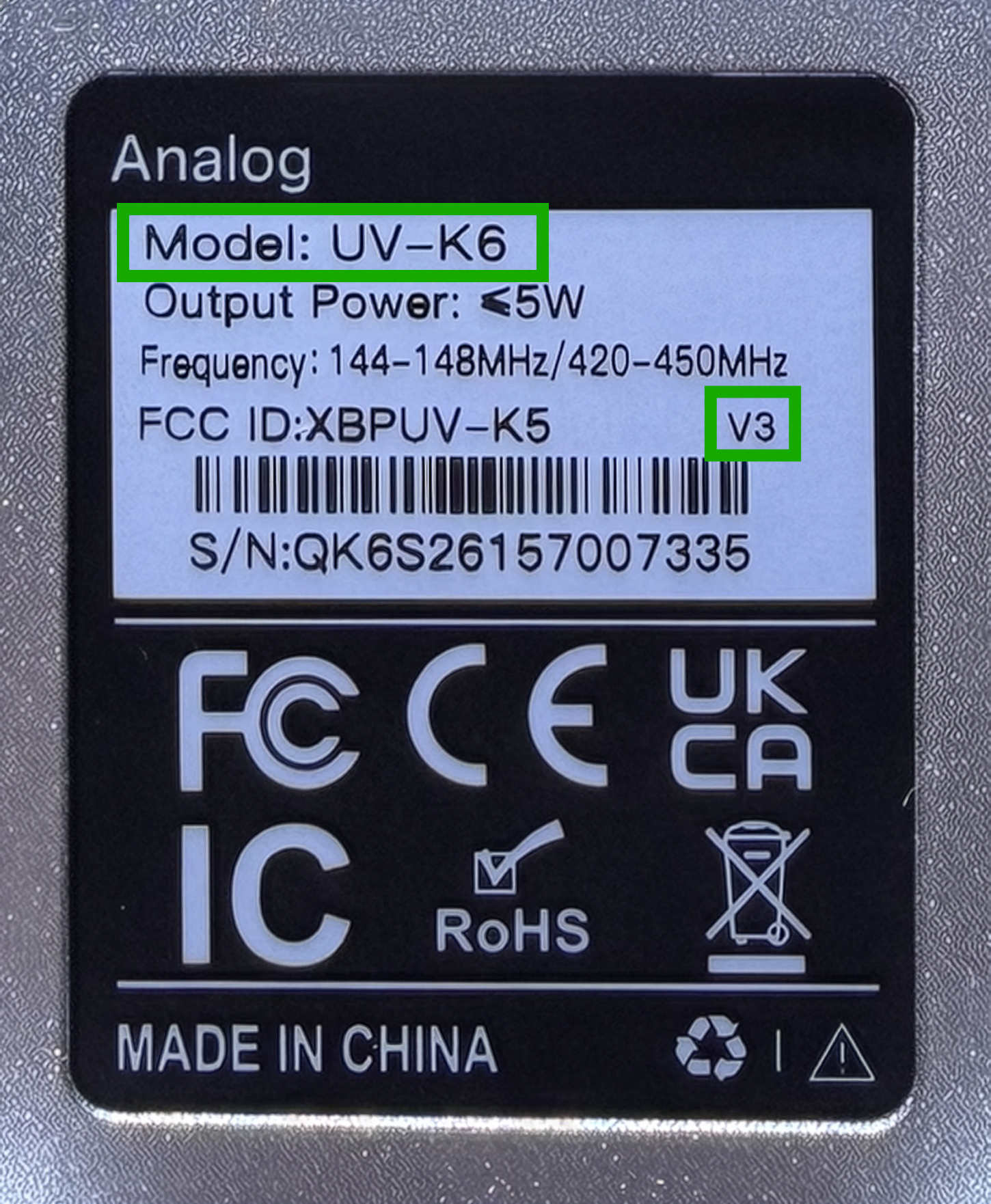
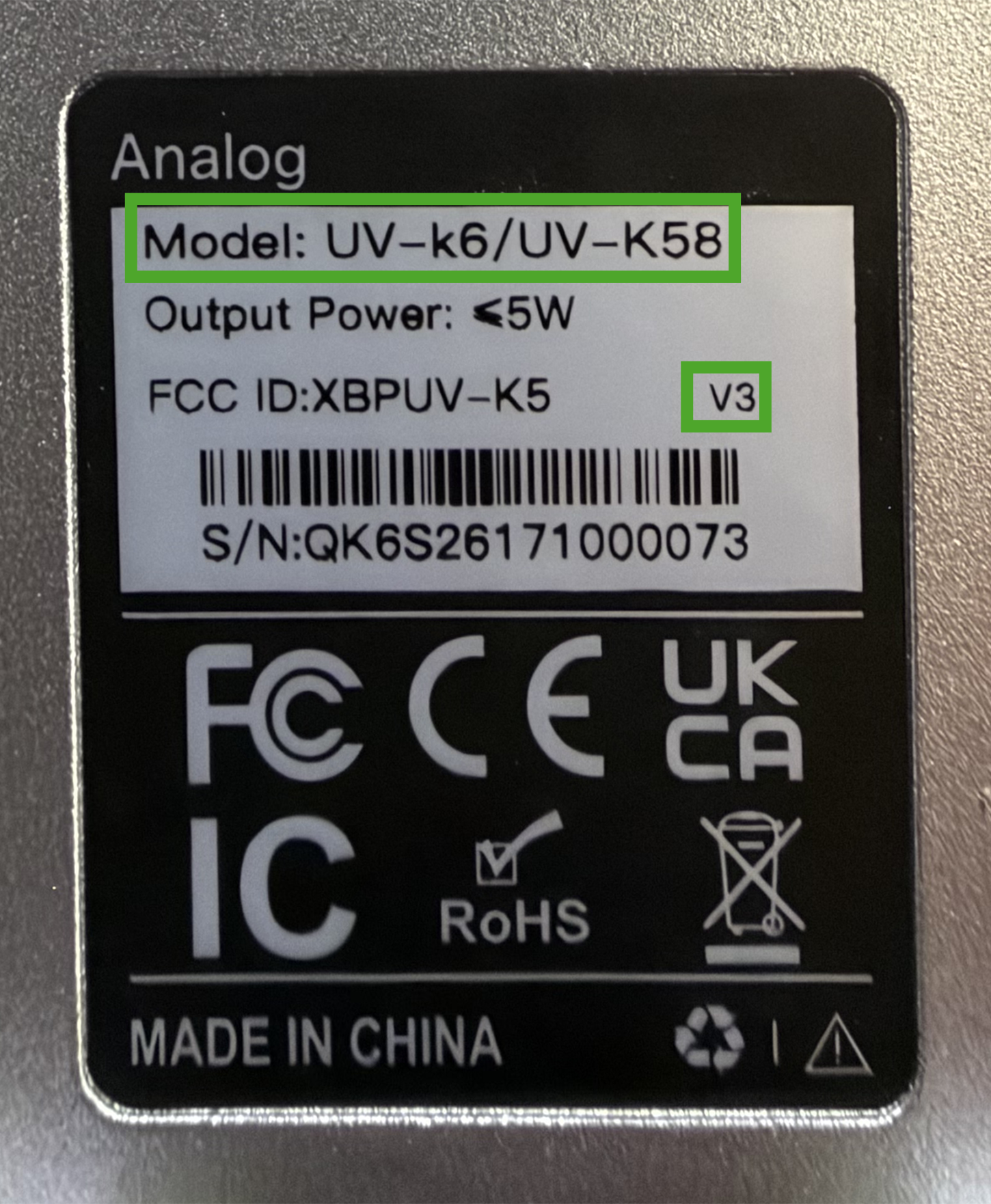
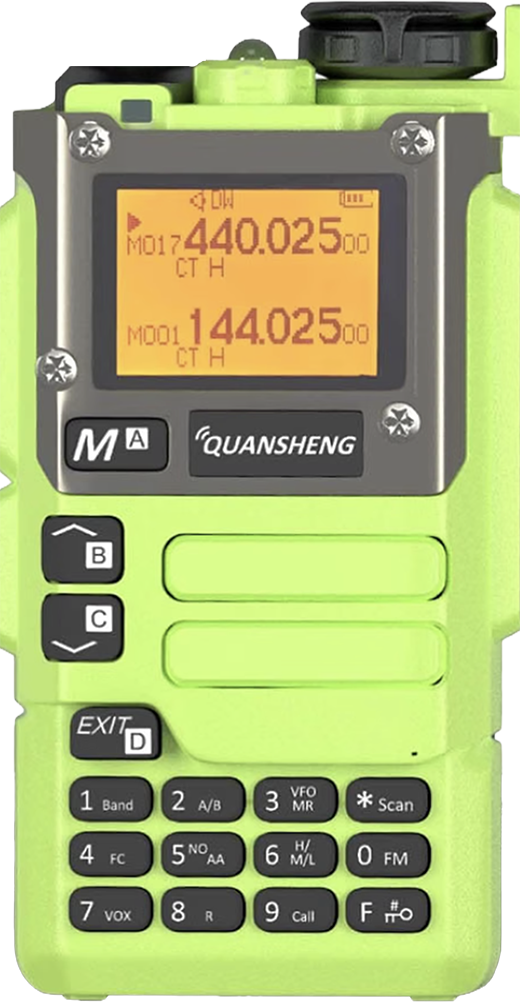
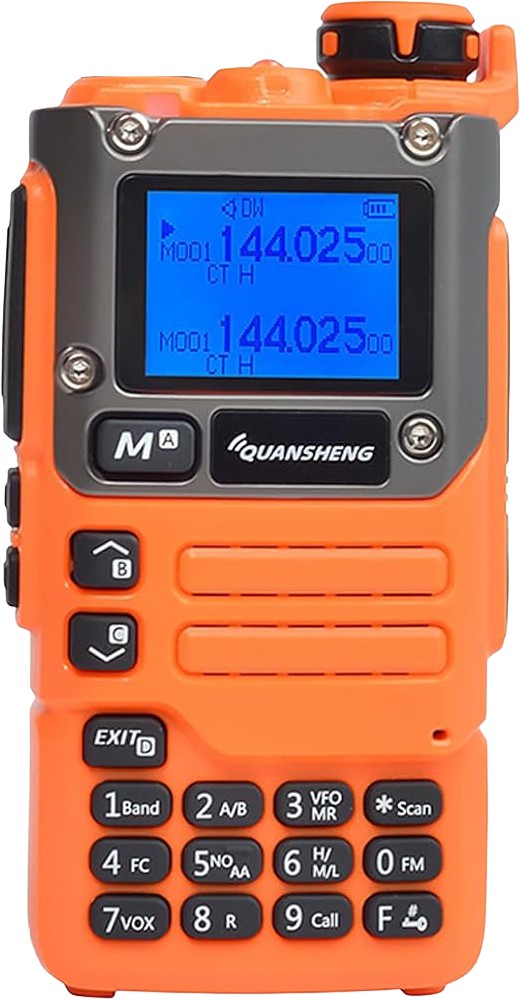
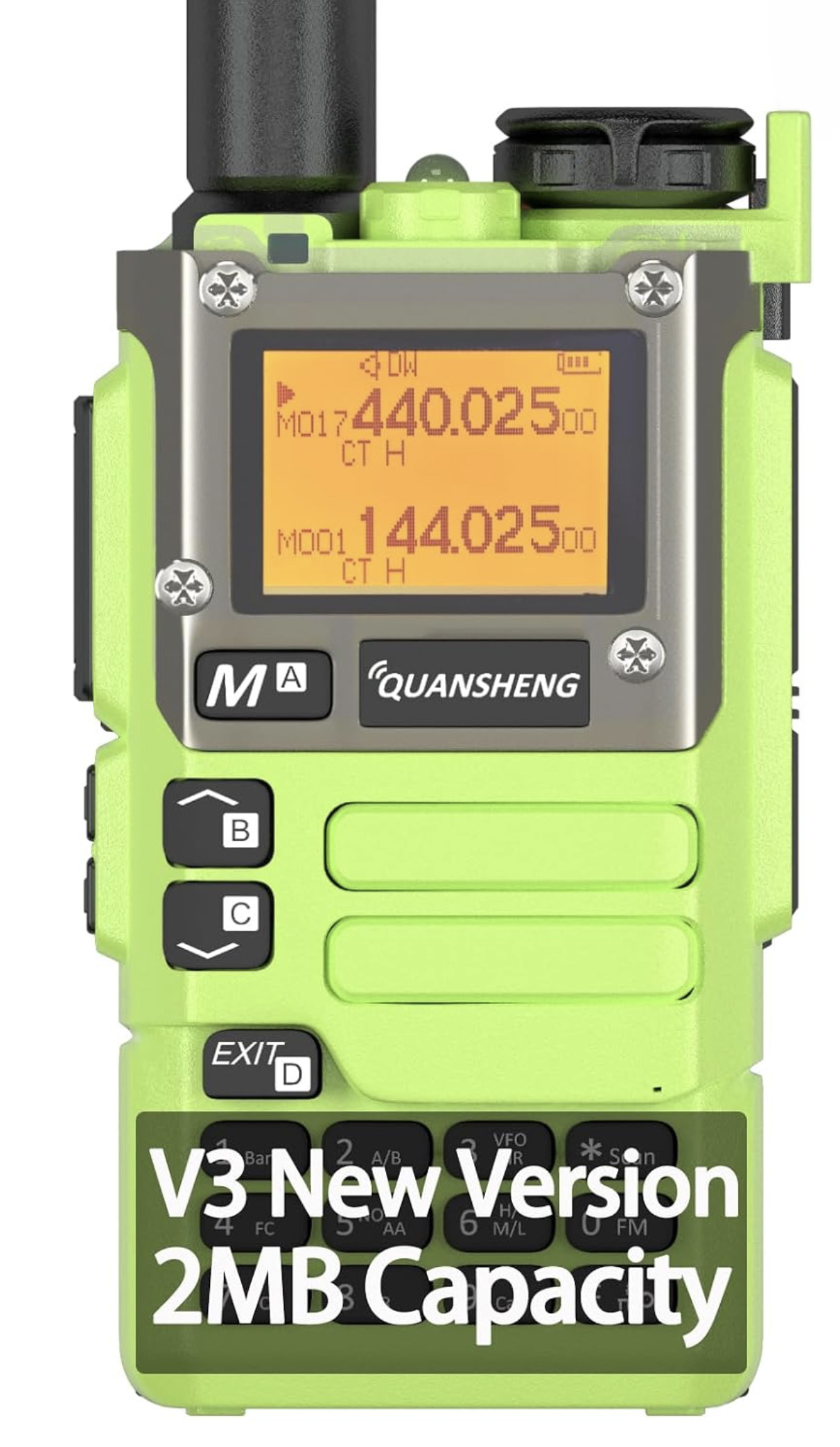
SPOT runs on consumer amateur radio hardware from a manufacturer named Quansheng. Supported models are the Quansheng UV-K5(8) and UV-K6. These are basically the same device which are branded slightly differently. Be sure they are the latest version, v3, with 2MB of storage. Older versions or variants of the unit are not supported.
In addition to the typical black case, some vendors have other colors such as orange or green. Some users prefer these because they are harder to misplace. Note that the background color of the display may vary, as shown in the examples below.
Please carefully check the vendor listing. You will not be able to successfully flash SPOT firmware onto an incompatible radio, and trying to do so may leave an incompatible radio in an unusable state. Check the listing to ensure it says "v3" and "2MB" as shown in the sample listing below.
If you remove the battery and look at the back panel label (see below), it will indicate the model and version as highlighted in the image to the right. It does not indicate the memory size. Every v3 devices we have come across so far also has 2MB of storage. Once you flash the SPOT firmware, you can confirm this, but you'll want to know before you flash - not after.