Start Here
SPOT Tools is a web app. Open SPOT Tools runs right in your web browser; there is nothing to download or install.
Before connecting, make sure you have:
- A browser with Web Serial support, such as Chrome, Firefox, Edge, or Brave. Safari does not currently support this connection method.
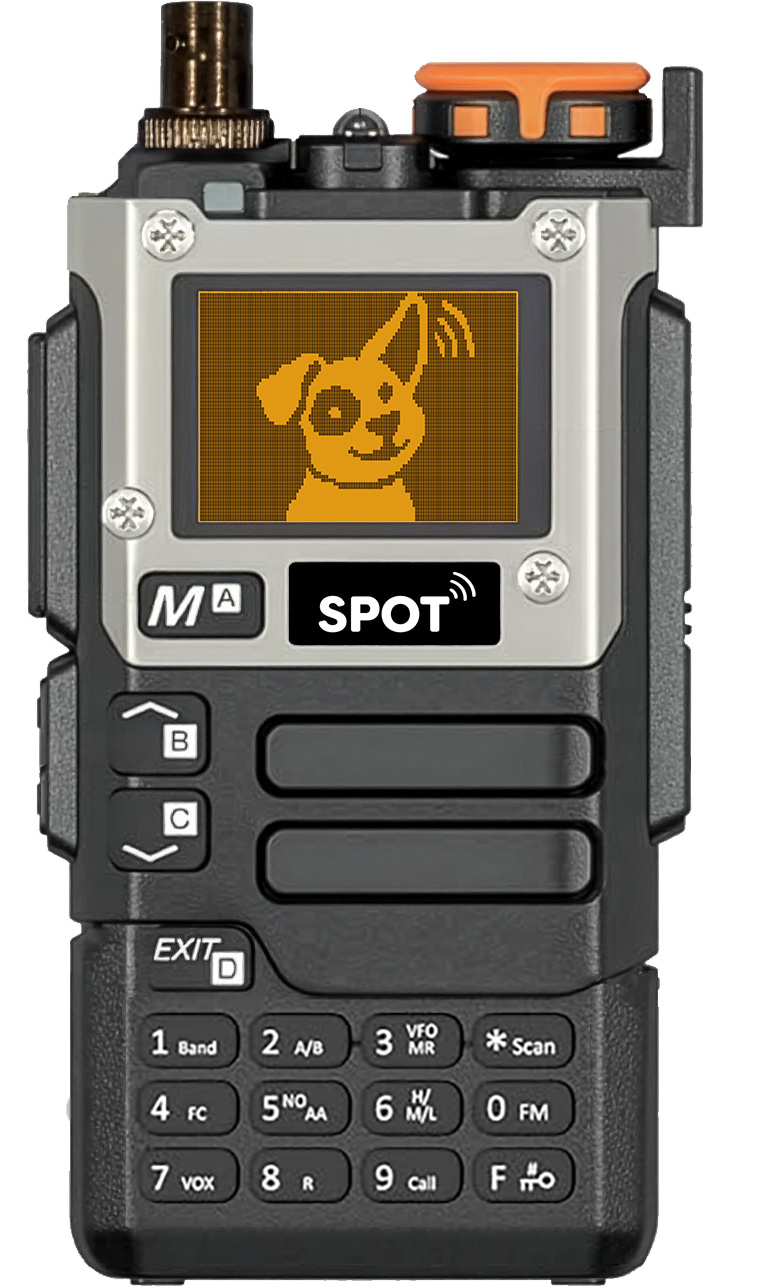
- A SPOT receiver connected to your computer with a USB-A to USB-C data cable.
- An organization-supplied programming file, if one was provided to you.
First Connection
- Turn on your receiver and connect it to your computer with the USB data cable.
- Open SPOT Tools and select .
- When your browser asks you to select a port, choose the one labeled SPOT Receiver. If you're asked for permission, allow it.
- Wait for the status area to show that the receiver is connected and the read has completed.
- Use to make a backup before changing an existing receiver.
If you're unsure which port to choose, turn off the receiver and turn it back on. The port that disappears/reappears is the one you want. Your browser may remember a previously connected receiver, in which case it won't ask you to choose a port.
Make Updates
- Use to open an organization-supplied programming file, or edit the current configuration directly.
- Use the Receiver tab to change overall receiver behavior and defaults.
- Use the Channels tab to add or edit channels, create lists, and assign channels to lists.
- Select when you are ready to update the receiver.
- Approve the receiver restart, then wait until the normal start screen returns.
After a large channel update, the receiver screen may remain blank for up to a minute while it validates the new data. Do not turn it off during that time.
Working With Files
- accepts SPOT Tools
.jsonfiles, Excel.xlsxfiles, and Telonics.tr8files. The latter contains channels and lists only - no receiver settings. - exports the complete current configuration as a SPOT Tools JSON file or an Excel workbook.
- Loading a file changes the information in the app only. The receiver is not changed until you select .
Quick Tips
- replaces the data currently loaded in the app, so save first if you need to preserve it.
- If the receiver is not detected, check the cable and receiver power, then try reading again. Allow browser permission and select the receiver if prompted.
- Watch the status area during read and write operations for progress and error messages.
For details, see the SPOT Tools Manual.